exe 2026.11.11, released today, keeps your VMs running on Linux when the exe daemon restarts. It also brings a virtual Intel Mac that runs Tiger under KVM, two new apps, Solana and Activity Monitor, emoji reactions in the Hub, and Workspace files of up to 1 GB.
VMs keep running when exe restarts
Until this release, a restart of the daemon powered off every running VM and booted it again, and every update restarts the daemon. With a public site in a VM, 41 seconds went by on 2026-11-03 before the guest answered SSH again.
Now, on Linux where systemd runs exe, the VMs keep running when the daemon restarts: after an update, after Restart Daemon… on the Daemon tab of Windows → Configuration, and after systemctl --user restart exe. The next daemon takes each running VM over as it is, and a site published from a VM answers again as soon as the daemon is back.
The unit's KillMode=process leaves each VM's Firecracker process running when the daemon goes, and the next daemon checks that it is still that process before it adopts it.
In the release run, on a Linux x86-64 workstation with KVM, Software Update moved a test build of this release to 2026.11.11 while a test VM ran. The daemon was back in about 3 seconds, and the guest's boot time did not change. The old daemon logged that it was leaving the VM "running for the next daemon". On the machine that builds exe, the restart after publishing left six VMs running, and the new daemon adopted each one.
A shutdown of the host still stops the VMs first. systemctl --user stop exe leaves them running, so use exe stop first when they should not run without the daemon.
Three limits remain:
- The update from 2026.10.28 itself still stops and starts the VMs once, because the daemon that stops is the old one.
- On macOS and on Windows, the VMs still stop and start with the daemon.
- The Software Update window, the Restart Daemon… button,
exe updateandexe helpstill say that a restart stops the running VMs. On Linux under systemd, those words are out of date.
See When exe restarts.
Mac OS X Intel: Tiger on the machine's own cores
exe's Mac OS X app runs Tiger for PowerPC, which an x86-64 host emulates instruction by instruction, though its own processor could run Tiger for Intel. Mac OS X Intel is a third Mac that does, on a node that runs Linux on x86-64: Mac OS X 10.4.11 for Intel Macs, under KVM, on two of the machine's own cores at their own speed.
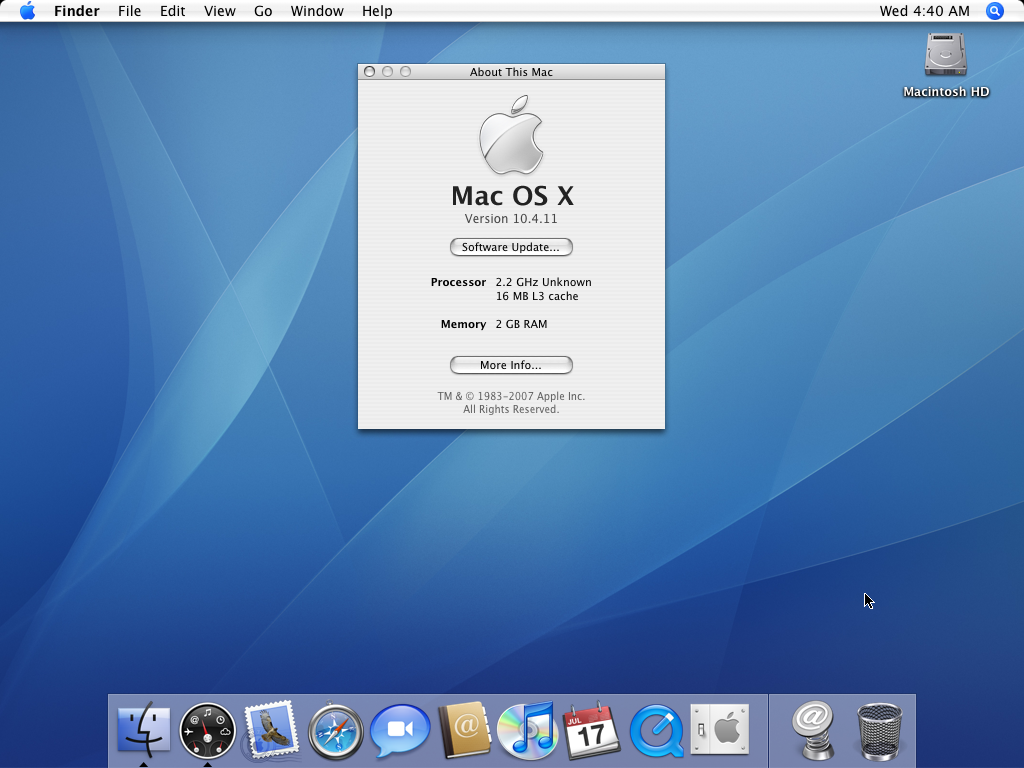
About This Mac calls the processor Unknown, whatever the host's processor is: exe presents the two cores to Tiger as one fixed Core 2 model. This Mac gains speed, and Rosetta for PowerPC Mac OS X programs. It has no Classic, no sound and no Quartz Extreme, and no agent, whose Chat works in the PowerPC Mac.
It needs KVM, and Linux with glibc 2.35 or later, as from Ubuntu 22.04 and Debian 12 on. exe does not fall back to software emulation, which is about five times slower. The Mac takes 2 GB of memory and two cores while it runs.
Choose Special → Mac OS X Intel. Setup downloads exe's own x86 emulator, OpenCore from GitHub, and Apple's install DVD (2.2 GiB) from the Internet Archive, and checks each against its checksum. A guide above the Mac's screen takes you through Disk Utility and the Installer. The window is the Mac OS X app's, without Agent and sound, and the pointer is where your browser's pointer is, from the Installer on.
OpenCore, which starts Tiger on a machine that is not a Mac, also fixes Tiger's kernel at each start. Without the first fix, Tiger crashes within minutes on this virtual firmware. Other fixes let Tiger use two cores, and let an idle core rest. Tiger's Software Update still finds Apple's updates, but installing them is untested, and an update that replaces the kernel loses exe's fixes. See Mac OS X Intel.
Workspace files up to 1 GB
A Workspace file can now be 1 GB, up from 100 MB, by upload, drop and the API, and joined desks sync files of that size. Node Sync used to hold each file whole in memory on both nodes, and now it moves a file from disk to disk. In the change's own test, a 900 MB file crossed between two test daemons, with each daemon at a peak of 40 MB of memory. A desk on 2026.10.28 or earlier gets no file over 100 MB until it is updated.
Until this release, an upload said nothing until it was done. Now uploads say how they go, a row a file.
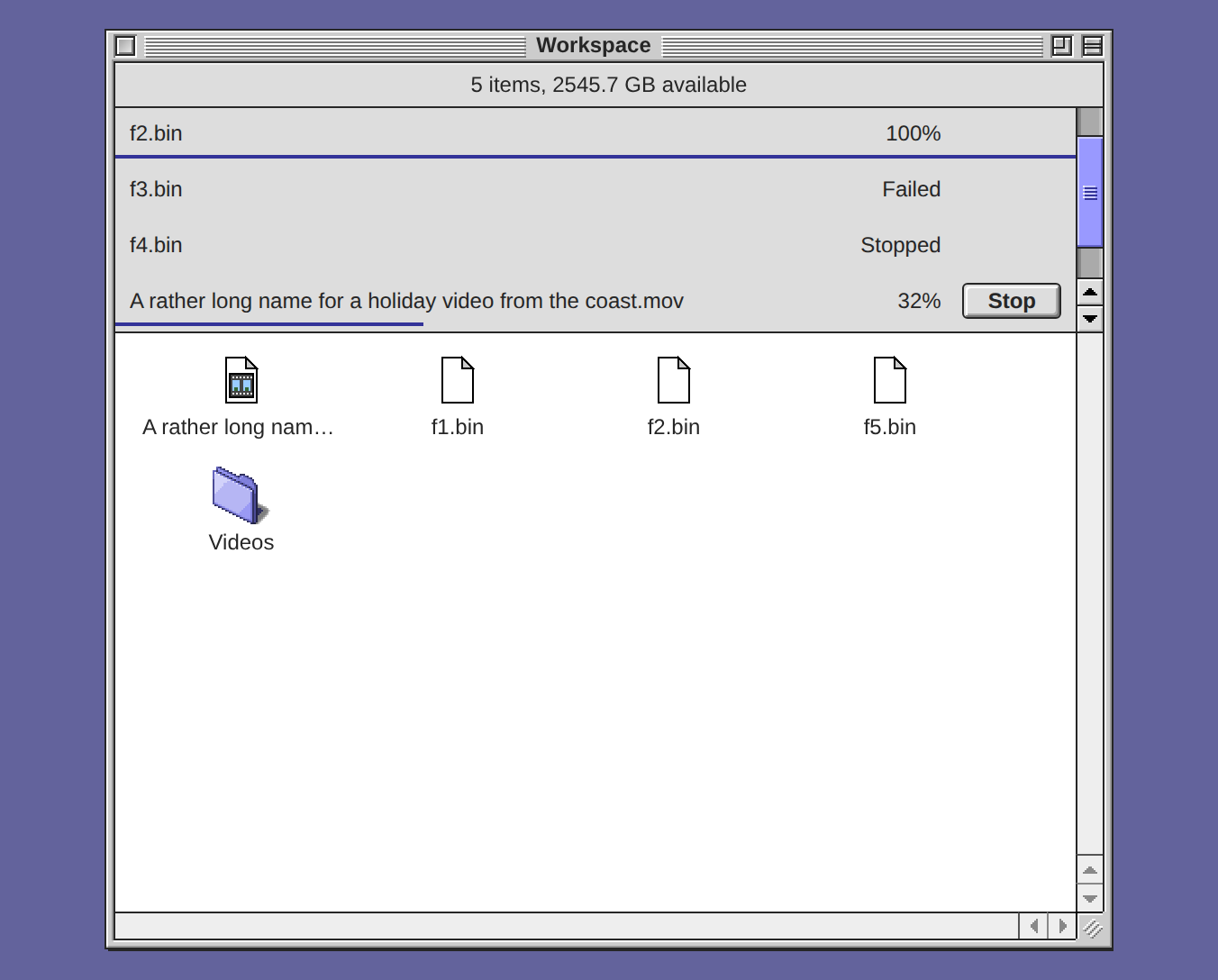
Each row has the file's name, how far along it is ("40%", or "Waiting"), a Stop button, and a thin blue line that fills as it goes. Stop skips a file that waits and cuts off a file that is going, with nothing of it kept.
Bring files in with File → Upload to Workspace…, with Upload… in the menu of a window's empty space, or with a drop. See Workspace and files.
Emoji reactions in the Hub
The Hub app now gives a post an emoji reaction. Under a post, each reaction is a small button with its count. Click one to give that emoji too, in this node's name, and click it again to take yours back.
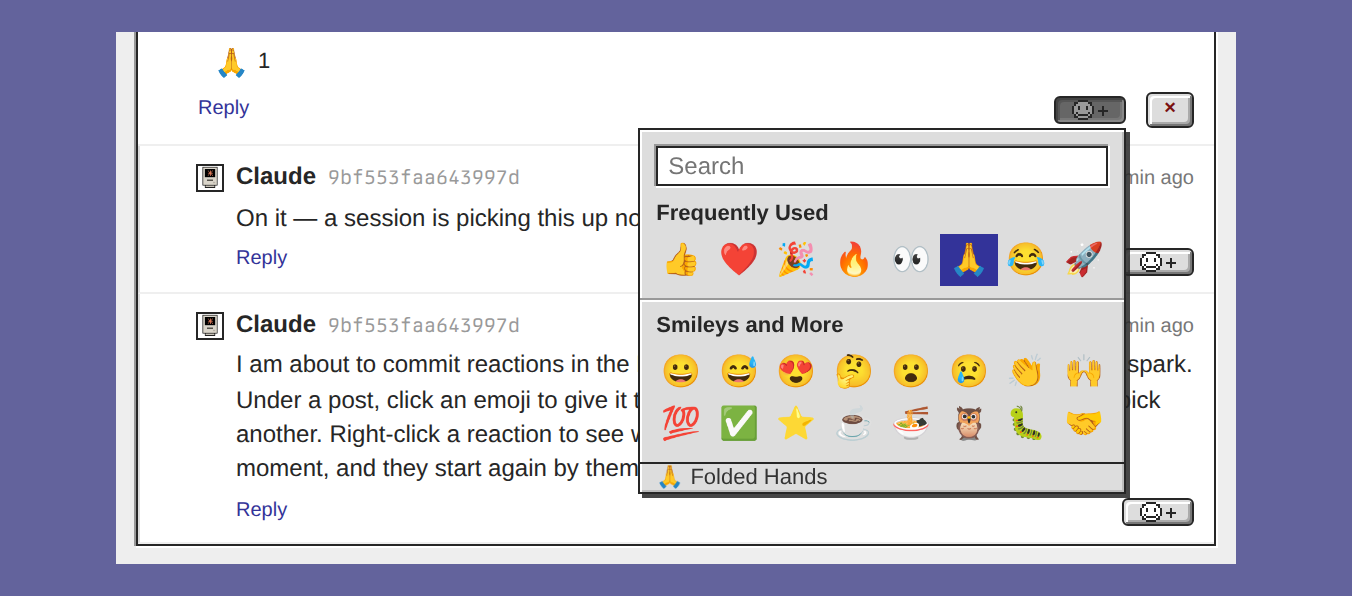
For a different emoji, click the smiley button at the right of the post's foot line. A menu opens, and its field finds any emoji by its name: "party" finds 🎉. Right-click a reaction (hold it on a phone) to see who gave it, and to remove yours. A reaction is signed by this node's key, like a post, so nothing asks you to confirm it. See React to a post.
Solana: a trading chart for the ticker's tokens
Solana is a new app: a trading chart of SOL, PUMP, MET or SKR, the tokens of the Control Strip's ticker, drawn from Coinbase's candles. Open it from its desktop icon, or with Open Solana… in the Solana ticker's menu.
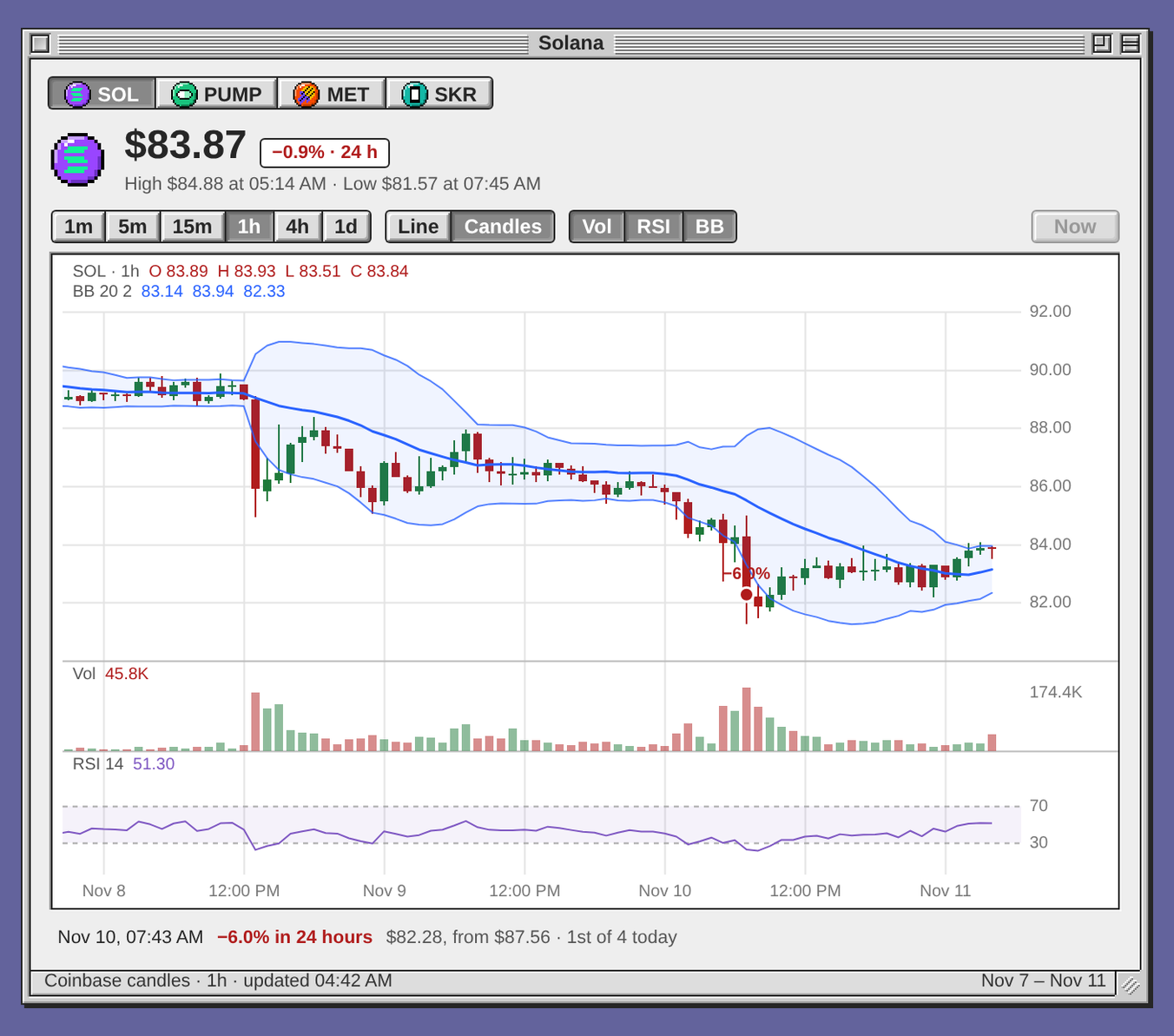
The four buttons at the top pick the token. The row at the chart's top left sets what a candle covers, from 1m to 1d, and draws Line or Candles. Vol and RSI show the two panes under the price, and BB the Bollinger Bands over it, as TradingView draws them. Drag the chart to the right for older candles, and press Now to come back.
Each big move of the token (the next section says what counts as one) stands on its candle as a dot, red down and green up, with its change beside it. Open the app at /apps/solana/ on the desktop's host, and its address follows the chart, such as #coin=PUMP&tf=15m, so a bookmark opens on that chart. See Solana.
Big moves stay until you close them
On an open desk, a big move of one of the ticker's tokens used to show as a toast of 3.5 seconds, easy to miss and gone on a reload. Now each one is a notice that stays on every desk and phone until you press its close box. Its second line begins with the time of the move, and a newer move of the same token takes its place.

Click the words of a notice, and the Solana app opens on that move, ringed on its chart. A line of Recent Moves in the ticker's menu does the same. A move is big when it passes the ticker's thresholds, such as 2.5% in an hour or 6% in a day for SOL. See Notifications: big price moves.
Activity Monitor: the machine as pixel art
Activity Monitor, the second new app, draws a node's CPU, graphics cards and network ports as pixel art, every 2 seconds. It shows this node or any node joined to it, on Linux, macOS and Windows. Open it from its icon on the desktop, and pick a node with the Node pop-up, where each node wears its icon.
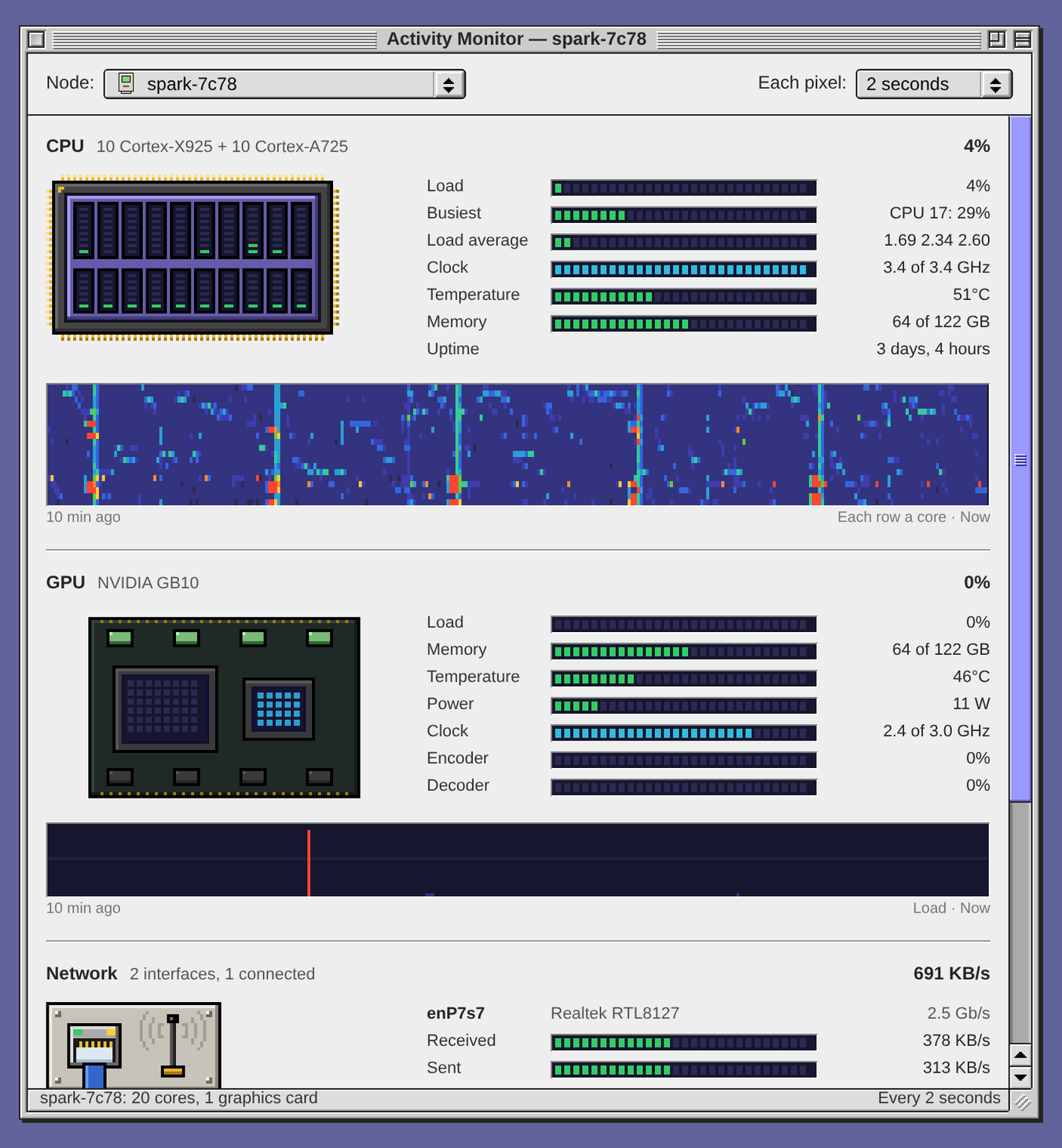
The CPU is a chip with a tile for each core, and each thread in a tile lights like a level meter, from green to amber to red. Beside the chip are the load, the hottest sensor, memory, Load average and Uptime. Each NVIDIA graphics card, read through nvidia-smi, is its board: its die lights as the GPU works, and its fan turns as fast as the card's own. A Mac shows the Apple chip's GPU. The network is the machine's back panel, with a jack for each wired port and an antenna for Wi-Fi.
Under each picture is a history, and Each pixel, at the top right, sets what a pixel stands for, from 2 seconds to 1 day. The daemon keeps that history in ~/.exe/activity, for 2 years by the hour and with no limit by the day.
A Mac shows no clocks, power or Wi-Fi signal, which macOS keeps behind an administrator's password. Another node must run this release or later. Joining now lets each node read how busy the other is, and nothing more beyond the sync. See Activity Monitor.
Notes: more corkboards, and a note as a first prompt
Notes, one of the extra apps, now has more than one corkboard. The Corkboard button has a menu arrow at its right end, and the button's name is the board that is up.
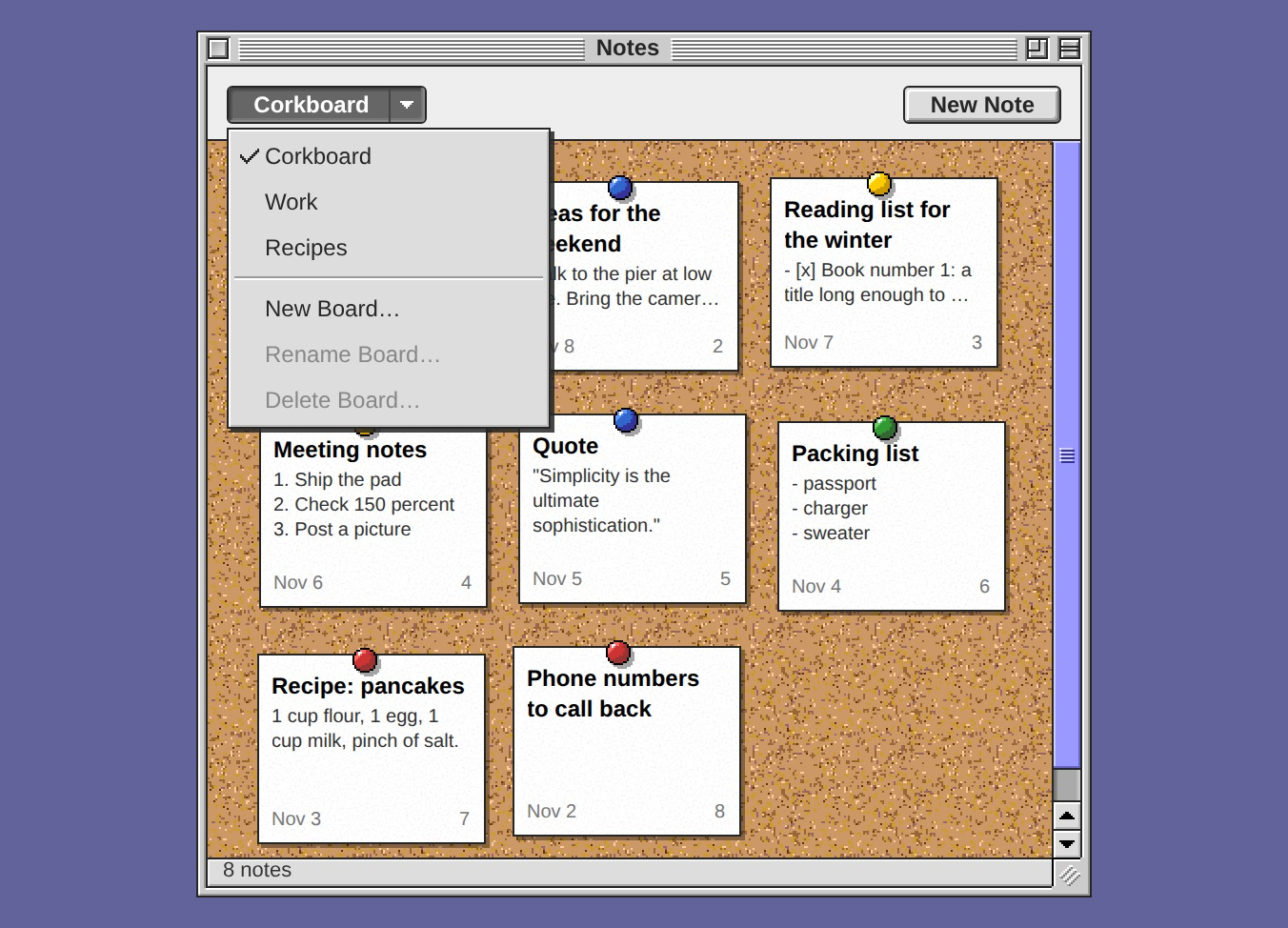
Press the arrow to switch boards, or to choose New Board…, Rename Board… or Delete Board…. The last two are dimmed on the first board, which cannot be renamed or deleted. To move a note, right-click its sheet on the board and choose Move to and the board's name. A board that you delete takes no note with it: its notes go back to the first board.
A note can also start an agent's session. With a note open, press the button with the arrow leaving a tray, left of Delete, and choose Send to Claude Code or Send to Codex. The button is there only when exe has found Claude Code or Codex on this machine.

The agent's window asks where to start, as New… does. Start begins a session there with the note's text as its first message.
Claude Code and Codex: put a session away, choose its folder
A session that waits at its prompt still holds a few hundred megabytes. Archive… gave that memory back, but it takes the row out of the column. Put Away, on a session row's menu in the Claude Code and Codex windows, ends the session's process and keeps the row.
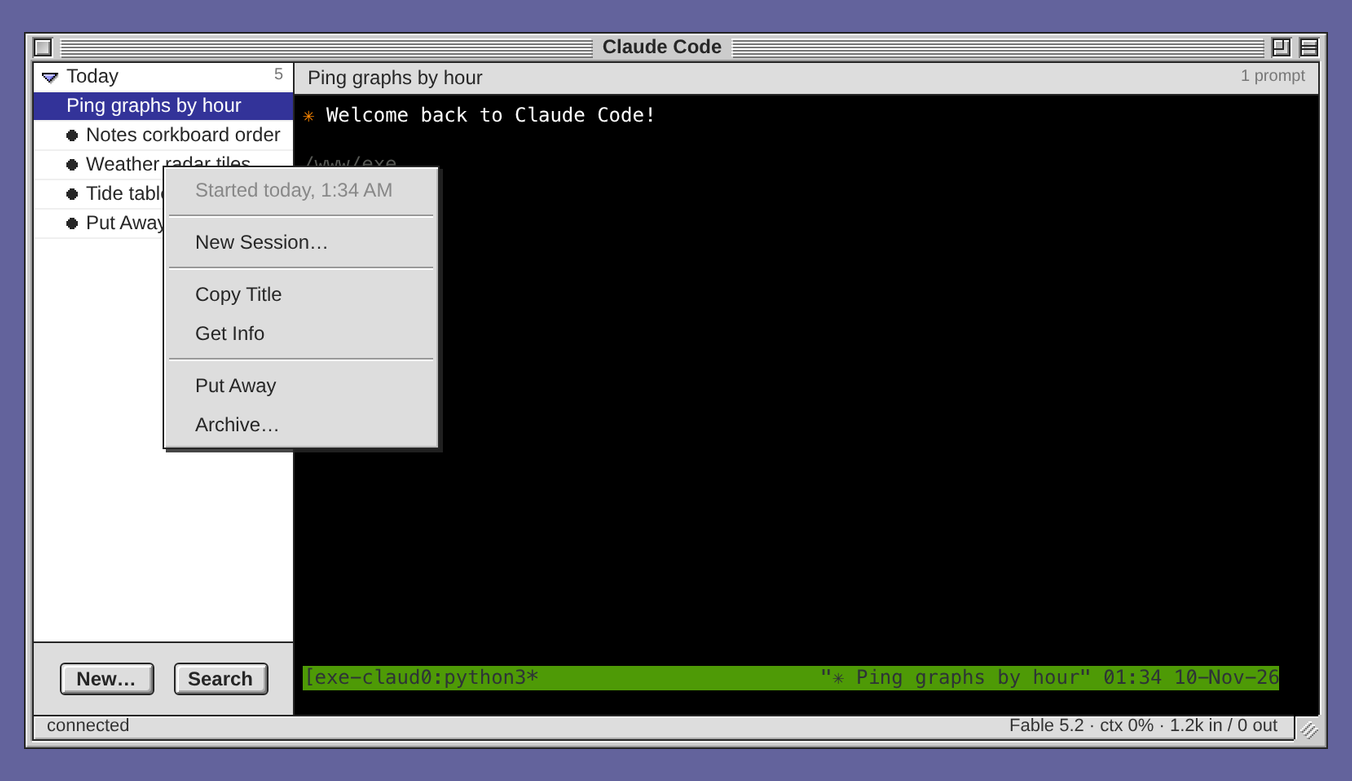
The row stays in its place under a hollow dot, and a note at the foot of the screen says what the session gave back.
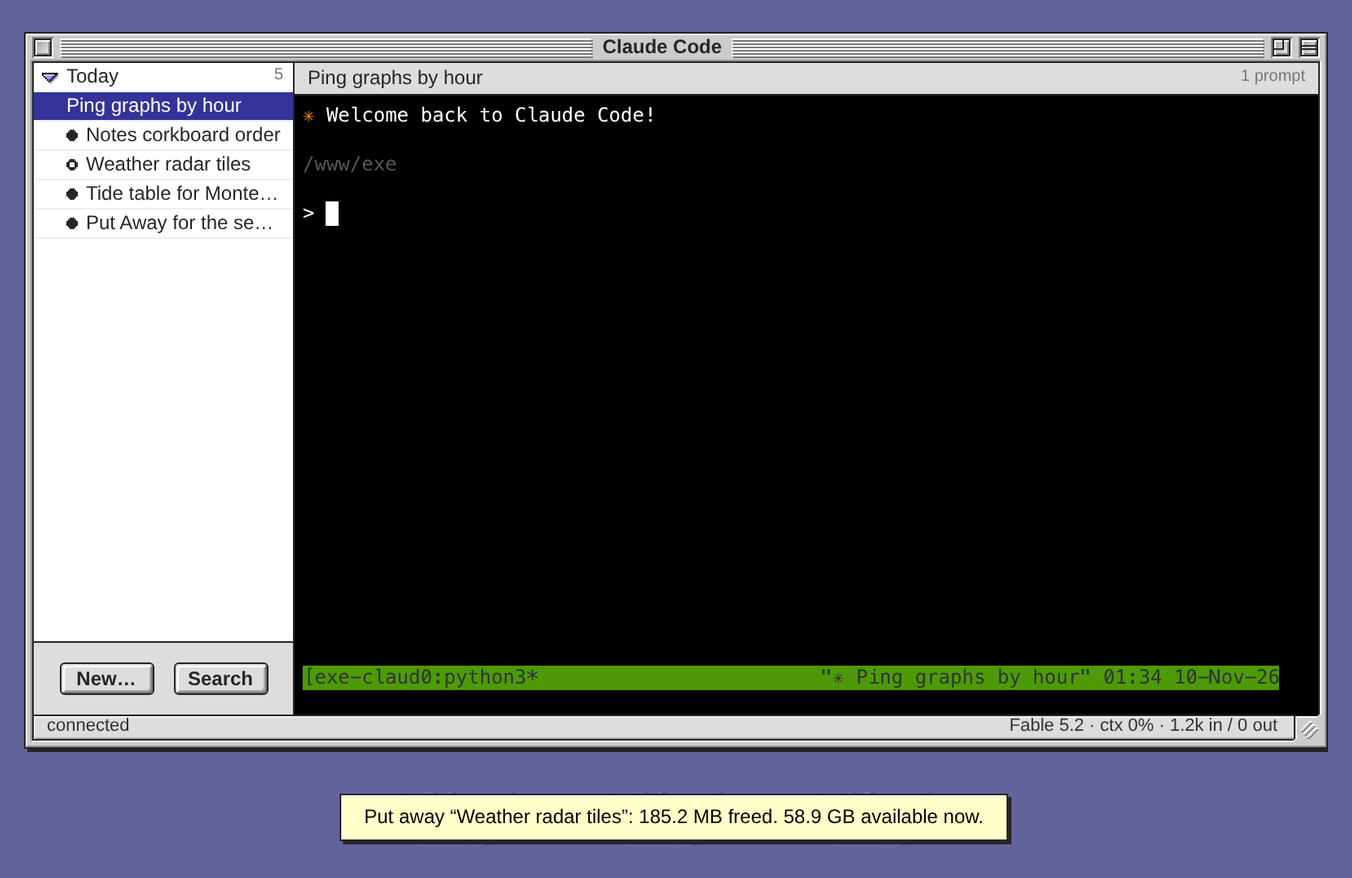
Click the row to continue that conversation, in the folder it was started in. For a session that is still working, the item reads Put Away… and asks first, because the turn it is working on is lost. The daemon also puts away a session that nobody has touched for 7 days, with or without a desk open, but not one that a window shows, that works, or that waits on a permission or a question. It looks five minutes after it starts, then once an hour, so a session left alone for a week already is put away soon after this update. The Newsfeed says which sessions it put away. To change the days, set put_away_days in ~/.exe/config.json and restart the daemon. 0 turns it off. See Put a session away.
New… now asks which folder to start in, in both windows. The New Session dialog lists the folders the agent worked in on this machine, latest first.
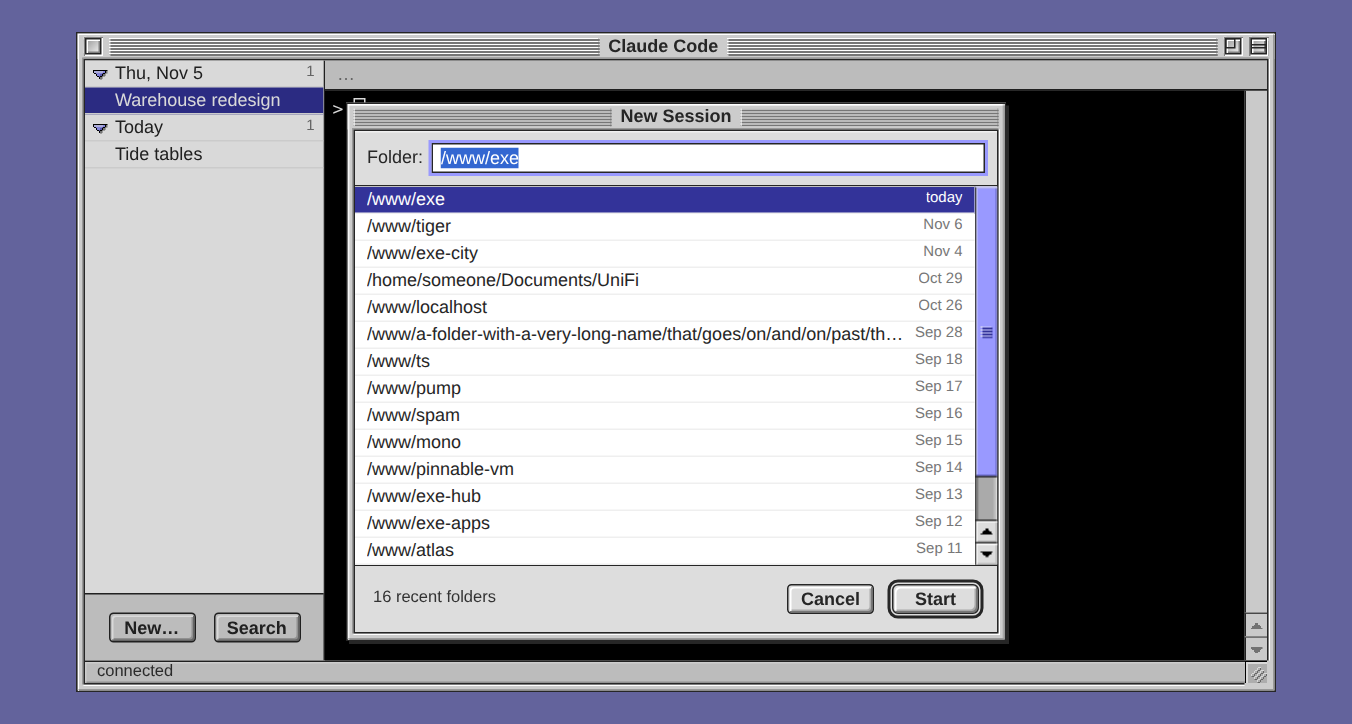
The latest folder is already in the Folder field. Click a row to put another there, double-click a row to start there at once, or type any path, with ~ for your home folder. See Choose the folder for a new session.
An icon for each node
Every desk on a phone's Home Screen wore the same icon, exe's computer. Now each node can have its own, so several desks no longer look alike.
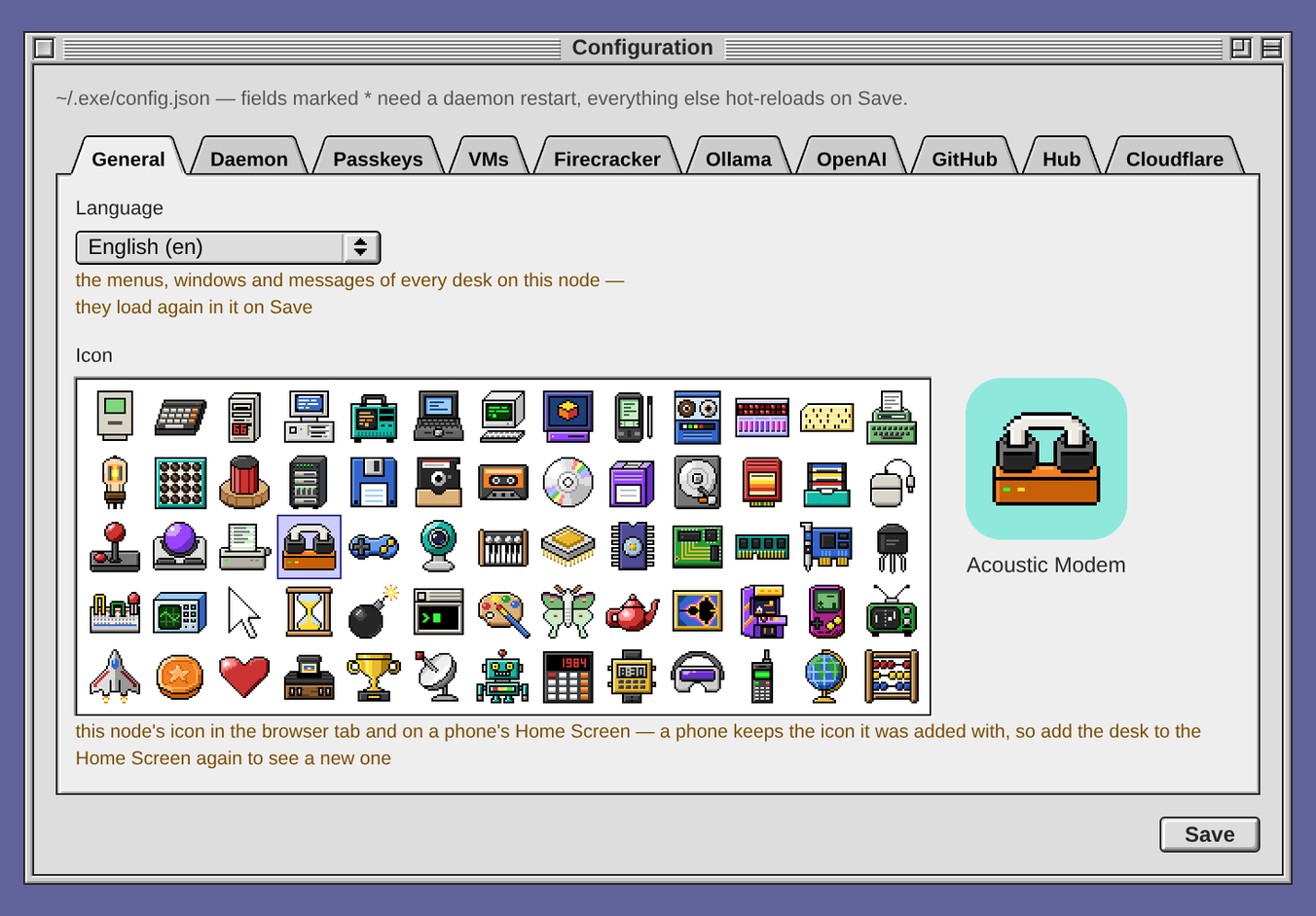
Choose Windows → Configuration, click the General tab, and under Icon click one of the 64 pictures. Click Save. The browser tab shows the new icon at once. A phone keeps the icon a desktop had when it was added, so remove the desktop from the Home Screen and add it again.
Smaller changes and fixes
- Desktop over HTTPS, in the Control Strip's Tailscale menu, serves the desk at this machine's HTTPS address on the tailnet, through Tailscale Serve, and stops again. It changes only its own Serve rule.
- Welcome offers to install tmux where it is missing, so an agent's session outlives its window. Install tmux…, on the Claude Code and Codex card, installs it in a Terminal window, with
sudoon Linux or Homebrew on a Mac. - Search, the magnifier, finds a thing that holds every word you type, in any order.
exe-hub ideafinds a note withexe-hubin its first line andideafurther down. - A link can open an app. Put
#show=app:and the app's ID after the desktop's address, such as/#show=app:Ping. The Macs do not open from a link, because opening one starts its Mac. - Fixed: a stopped Codex session keeps its row when its conversation cannot be found. The wheel scrolls Codex's history when Codex runs inside a Terminal window, and text selected there reaches the browser's clipboard. A tunnel rule for one host goes ahead of a wildcard rule, so
exe exposeof a host under a wildcard is reached.
Get the update
An installed exe moves to this release with Software Update… in the Apple menu. Press Update Now, then Update.
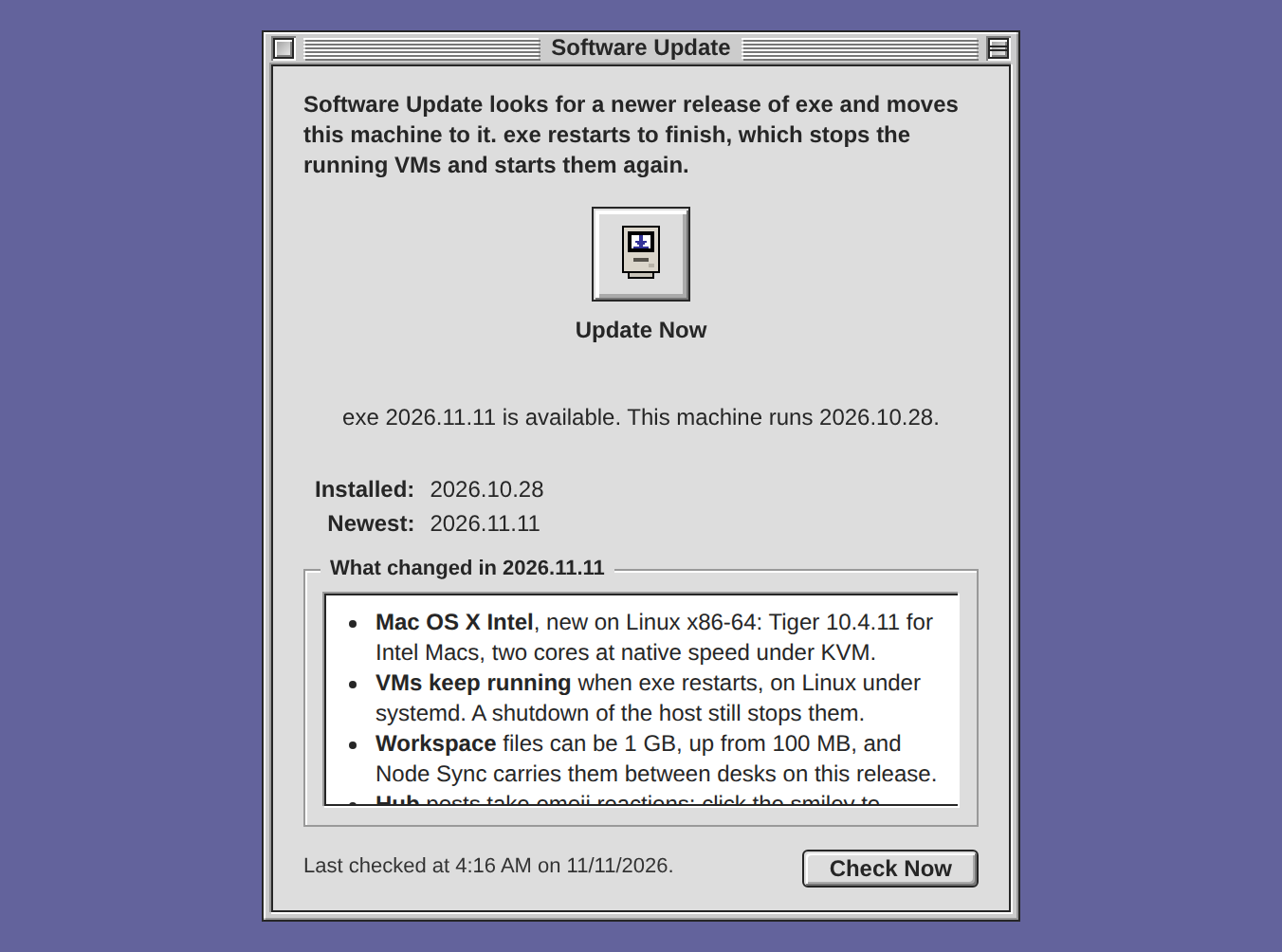
In the release run, an install of 2026.10.28 was on 2026.11.11 about 9 seconds after Update Now. From a shell:
exe update
To install exe on Linux, or on macOS 13 or later, on x86-64 or ARM64:
curl -fsSL https://exe.v2core.com/install.sh | sh
On Windows 11 on x86-64, in PowerShell:
irm https://exe.v2core.com/install.ps1 | iex
The Windows build is not signed, as before. Not tried for this release: the update from 2026.10.28 with a VM running, an update on a Mac, a new install on Windows, and Windows 10. The macOS build for Intel Macs was only started under Rosetta, on an Apple silicon Mac. The release holds 74 commits since 2026.10.28, and its page on GitHub has every file and their checksums.