exe 2026.10.15 hands work to its coding agents. Projects, a new extra, is an issue tracker on the desk that sends an issue to Claude Code or Codex from its menu. Welcome now sets up both CLIs, the Claude Code window shows every prompt, and a phone can paste into a terminal.
Projects: an issue tracker on the desk
Work for an agent often starts as an issue: a bug you saw, a screenshot, a plan in a comment. Projects keeps those issues on the desk, beside the agents that work on them. It comes with exe-projects, a program that runs beside exe, and it is the fourth extra, after the extra apps, Planet and Easel.
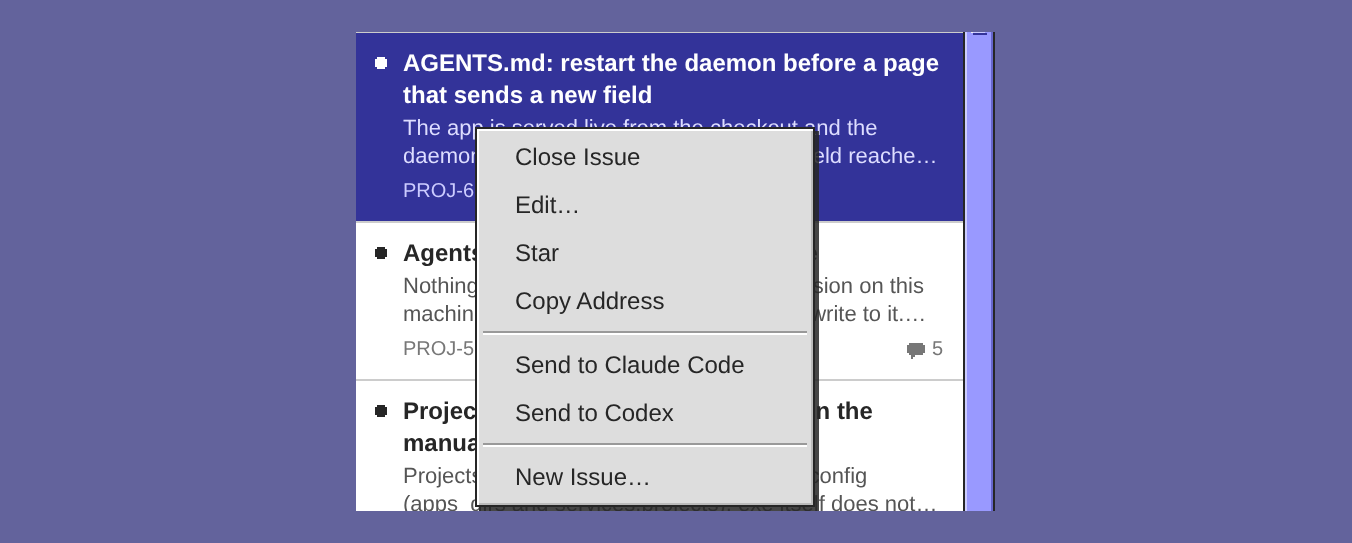
The window has three columns: your projects, a project's issues and the chosen issue. A project has a short name in capitals, such as EXE, and its issues are numbered from one. So EXE-12 always names the same issue, wherever you write it. Right-click an issue to close, edit or Star it, or to copy its address. The pop-up at the top right lists the open, the closed, all or the starred issues.
Agents use the same tracker from a shell. exe-projects new files an issue, and in a project's folder a dot stands for the project, so an agent at work in a checkout files what it finds without knowing the project's name.
Click a picture under an issue to open it in a picture window. When the issue has more than one, the Left and Right arrow keys step through them, and the window says which one it shows, such as 2 of 5.
Attached files are kept in IPFS, which needs Kubo on this machine. Anyone who learns a file's address can fetch it, so attach nothing private.
Send an issue to Claude Code or Codex
To hand an issue to an agent, you would copy its text and its comments into a prompt and start a session in the right folder. Now right-click the issue and choose Send to Claude Code or Send to Codex. A new session starts in the project's folder, with the full issue and its comments as its first task. You watch it work in the agent's window and take over when you want.
- Only the agents that exe found on this machine are in the menu.
- Attached files are named in the task, not sent with it.
- It needs tmux, and a working directory for the project on this machine.
- The agent keeps its usual sign-in, trust and permission prompts.
- An issue over 64 KiB is refused, and the message says its size.
- Issues sent while the window is still opening each get a session of their own, in order.
The issue then shows the session at work on it, and how long its turn has run.
Open a project in Claude Code
When the work is not one issue yet, right-click a project and choose Open in Claude Code. A new session starts in the project's working directory, at the top of the Claude Code window's list. The working directory is optional. Press Project… and write it in the Directory field. The item is greyed for a project without one, or for one whose folder is not on this machine, and it needs tmux, as the two Send items do.
Install it with Extras
Projects is a program of its own, built from its source, so exe does not carry it. Choose Help → Welcome…, press Extras… on the Apps card and go to the Projects step. While Projects is not on this machine, the page gives a line to hand a coding agent. Copy Prompt copies it, and the agent installs exe-projects from its README. If Projects is here and exe did not find it, type its folder and press Find.
Tick the box and press Apply on Review. Extras adds the program's apps folder and its daemon to exe's configuration for you. Turning it off changes only exe's configuration, and the daemon runs on until you stop it. The Apps chapter has the rest.
Set Up… on Welcome's Claude Code and Codex card
The Claude Code and Codex icons appear on the desktop only once their CLIs are on the machine exe runs on. Welcome already said which of the two are there. Now it also gives the version of each, and helps you install the one that is missing.
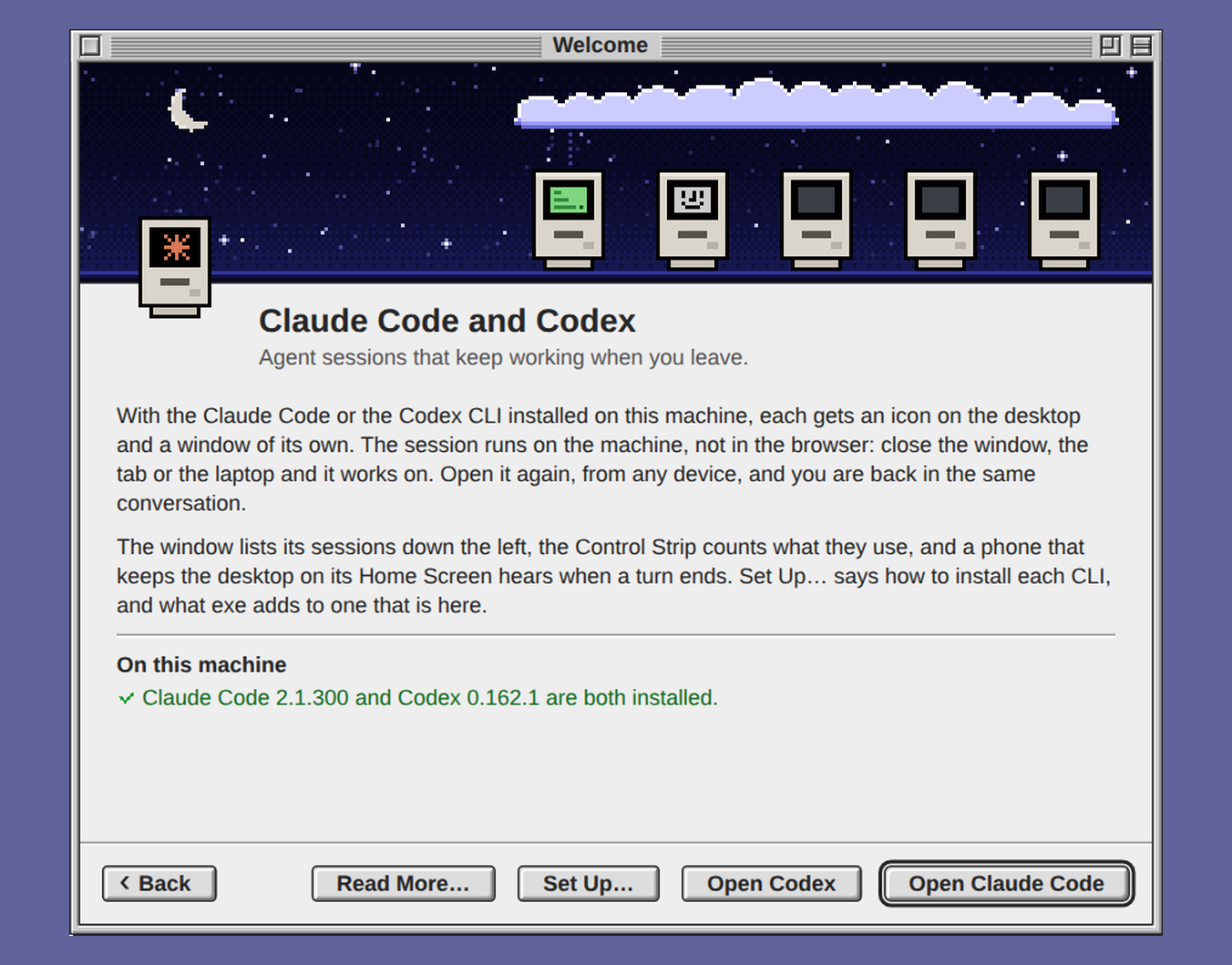
On the Claude Code and Codex card of Help → Welcome…, Set Up… opens Agent Setup, a window of three steps: a page for Claude Code, one for Codex, and a review.
- An installed CLI's page shows its version and what exe adds to it, with Open Claude Code or Open Codex.
- A missing CLI's page shows the command that installs it on this kind of machine: Anthropic's installer for Claude Code, and npm or Homebrew for Codex. Copy Command copies it, and Install in Terminal… runs it in a Terminal window on the desktop.
- Check Again looks at the machine again. A CLI installed while the desktop is open gets its icon without a reload.
- Review lists both versions and says whether tmux is on the machine. Without tmux, each window is a fresh run of the CLI.
The Claude Code window
The prompt line, and every prompt
A terminal shows what the agent answered, and your own prompt scrolls away. Now a line over the terminal shows the first line of the session's latest prompt, with the number of prompts at its right. It follows the session on screen, and a new prompt shows there within a couple of seconds.
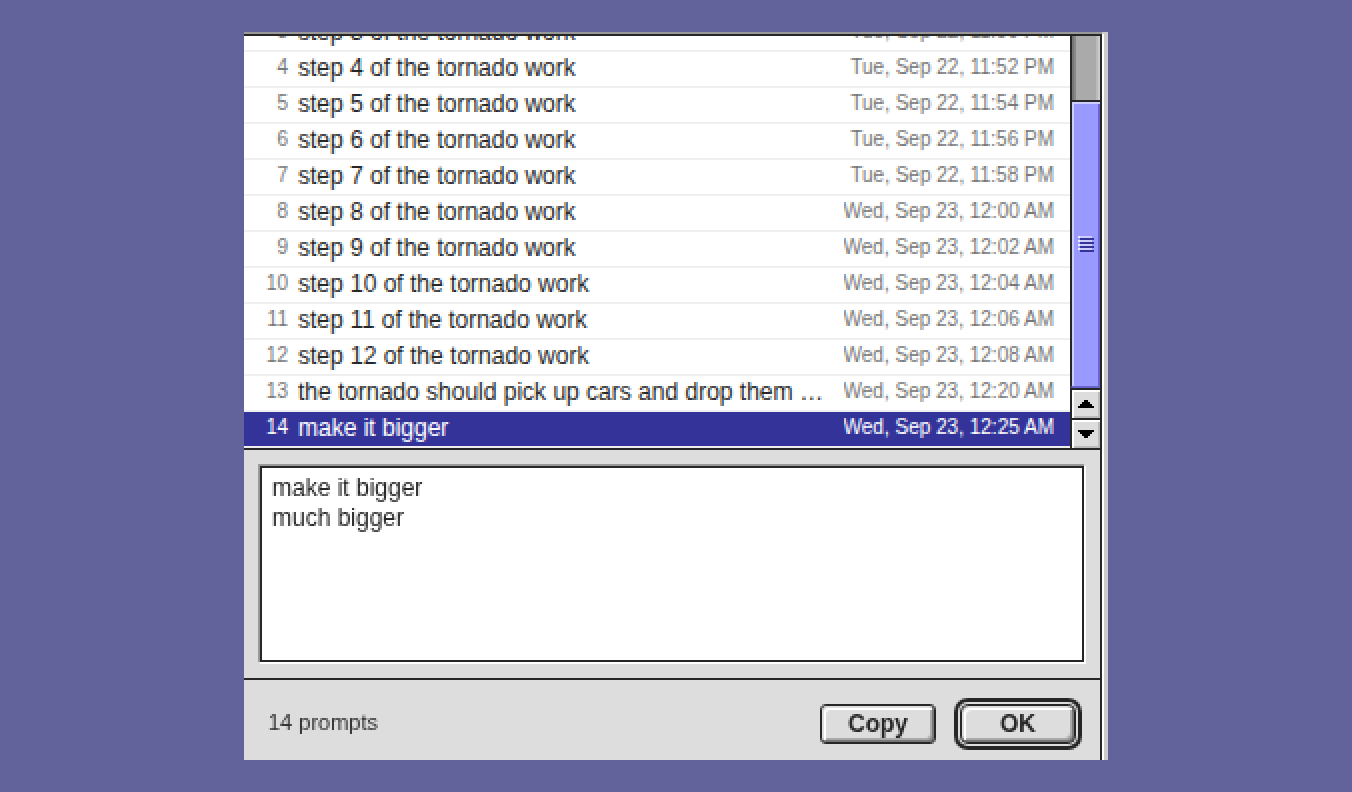
Click the line for Prompts, a list of every prompt of the session in order, each with its number and time. The selected prompt stands whole under the list. Copy copies all of it. A prompt is what you typed or pasted: slash commands, tool results and a sub-agent's turns are not listed. A prompt over 20,000 characters is cut there in the list.
Get Info on a session
You archive an idle session to get memory back, and first you want to know what the session was. Right-click its row and choose Get Info.
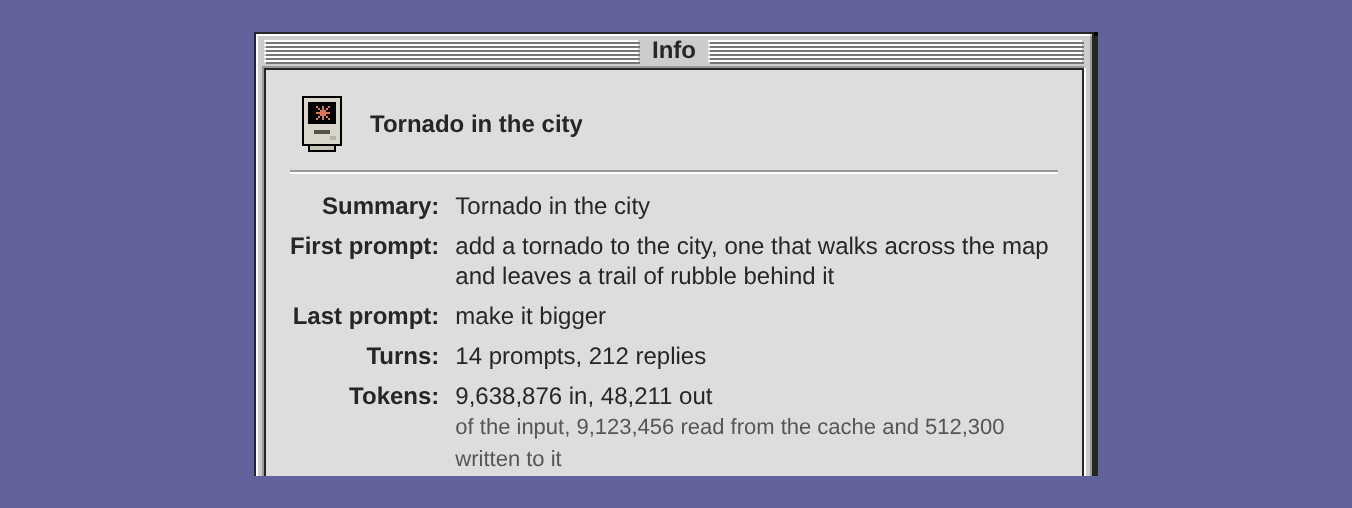
The dialog is read from the transcript that Claude Code keeps on this machine. It gives the summary, the first and the last prompt, the count of prompts and replies, and the tokens, with how much of the input came from the cache. It also gives the models, the times, the folder and the session's name. Archive… is in the dialog too, so you read and decide in one place.
What Archive… gives back
Now, once an archived session's processes are gone, a note at the foot of the screen says what they held in memory and in swap, and how much memory the machine has available now. You know what ending the session was worth.

The figures are the processes' own, read before tmux ends them. On a Mac or a PC, where the daemon cannot read what a process holds, the note says only how much is available.
Search finds a session by its name
A session has a name of its own, such as exe-claude-90, which Get Info gives on its Session line. Search matched a session in the column on its title alone, so typing that name found nothing. Now it matches the name too, the whole name or its number, so exe-claude-90 or 90 finds that session.
The Codex window has no prompt line, Get Info or Search yet. The Claude Code chapter has the whole window.
Agent on the Mac OS X window
Tiger, in the Mac OS X app, is a 2005 system, and its tools lack much that a current one has. Now an agent that knows this works inside the Mac for you, while you watch.

While the Mac runs, press Agent in the Mac OS X window, and a Chat opens pinned to the Mac, as Run Agent pins one to a VM. Chat needs a model for this, from Ollama or a ChatGPT sign-in. Ask in words, such as "what is in /Applications?" or "put the picture I painted on the desktop". It works over Remote Login with the shell and file tools, keeps a memory of the Mac between chats, and never restarts or shuts down the Mac unless you ask. Its upload tool copies a Workspace file into the Mac. When it was built, a chat on Tiger 10.4.11 uploaded a picture from Paint, made it the desktop picture and photographed the screen.
Set it up once in Setup details. Enter the Mac account that the agent works as. Then run the line shown there on the Mac, as that account. The window does not carry your clipboard into the Mac. One way to get the line there is a shell over Remote Login from this machine, which the manual describes. The line authorizes an RSA key that exe made, since Tiger's SSH server knows no newer kind. Remote Login must be on in the Mac's Sharing pane. Until all this is done, a chat with the Mac fails and says why. The Mac OS X chapter has more.
Stickies from Notes
A note you wanted in view had to stay open in the Notes window. Now it can stand on the desk by itself, as notes did in Mac OS 9's Stickies.

Press the pushpin at a note's foot in Notes. The note becomes a small window in its own colour, with a look sampled from Stickies in a running Mac OS 9. Drag it by its thin title bar and size it by the box on its corner. The box at the bar's right end collapses it, and the box at the left end puts the note back in Notes alone. What you type in a sticky is in Notes too.
The place is kept in the note, so a sticky stands where you put it on every desk that syncs. A drag on one desk and an edit on another both survive. A phone opens no stickies.
Show Desktop
Windows cover the desk's icons. Closing them, or dragging them aside, changes the saved layout on every screen that shows the desk.
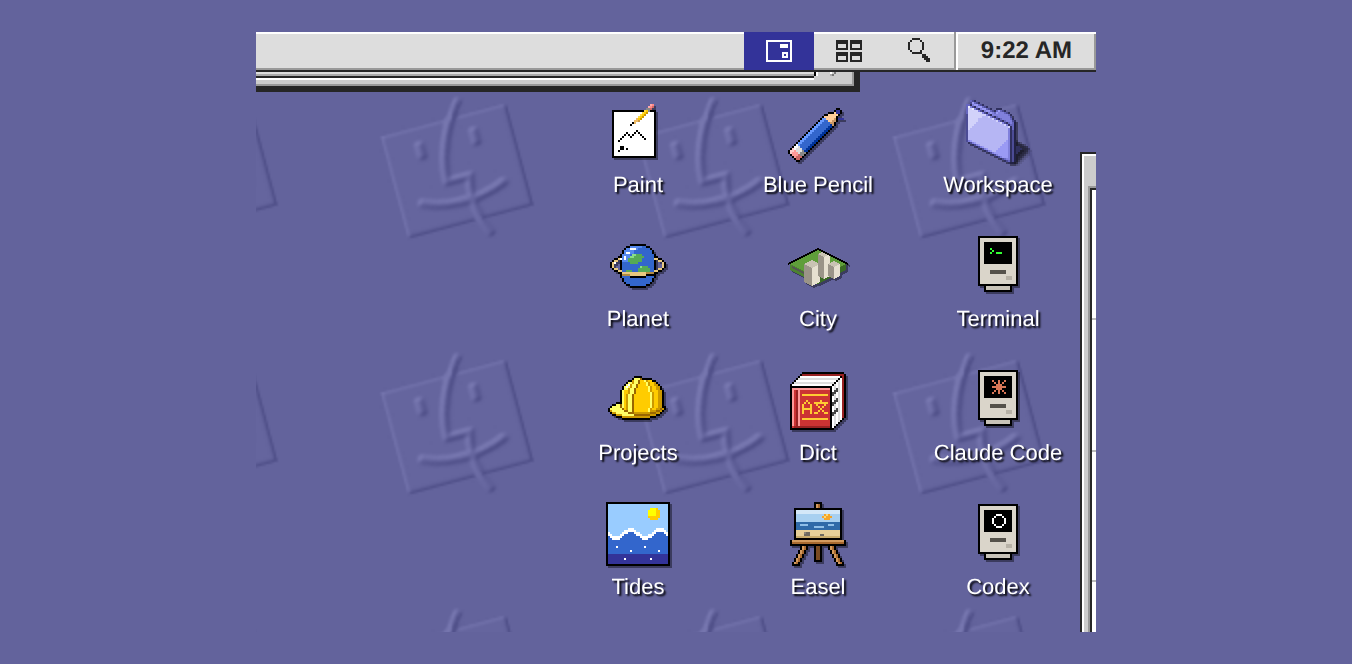
The button with a bare desk on it, left of Show All Windows in the menu bar, slides every window off to the nearest edge of the screen, with a sliver of each in view. The desk, its icons and the Control Strip stay in use. Click a sliver to bring all the windows back with that one in front. The button again, Escape, or opening a window from the desk brings them back too. Nothing is closed, and the saved layout does not change. The desktop menu reaches it as showdesk, and a phone has no such button. The desktop chapter has more.
Notes and Projects while exe does not answer
When the daemon restarts or the device is offline, the desktop shows an alert until the daemon answers again. Until now, nothing could be read in that time. Reading a note or an issue should not need the network. Only changes should.

Notes and Projects now keep a copy on each device that has had the desktop open over HTTPS. The alert has a button for each: Open Notes and Open Projects. In a browser the app opens in a new tab, and the alert turns back into the desk the moment exe answers. In the installed app, which has no tabs, the app takes the alert's place. On a phone it has a back button at its top left, marked exe, that leads back.
The app says how old its copy is and dims what would change something, such as New Note and Delete. Projects keeps every issue, open or closed, and the pictures on open issues, up to 4 MB each. The copy is renewed each time the desktop opens and each time a notification arrives. A load that has not begun to answer after 8 seconds also shows the alert.
On a phone
A pinch on a picture zoomed the whole page, with the menu bar. Now it zooms the picture about your fingers, up to its own pixels and at least four times over. A double tap zooms to the picture's own size, and another double tap brings it back. Zoomed in, one finger drags the picture. A picture from an issue in Projects swipes sideways to the issue's next or previous picture, fetched ahead so that it shows at once.
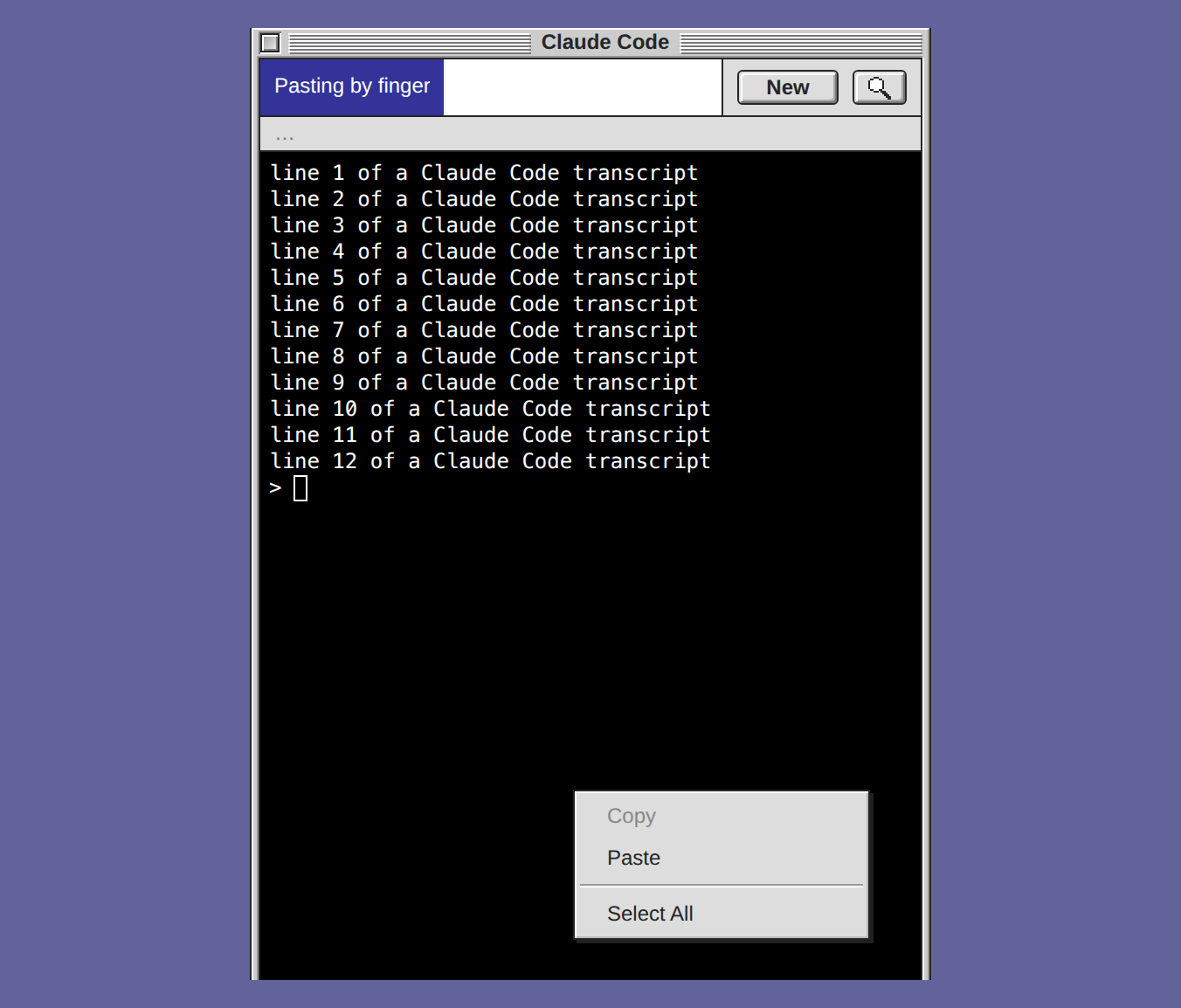
You could not paste into Claude Code's composer on a phone either. The terminal's menu opened only on a right-click, which iOS never sends, and the phone's keyboard has no paste key. Now press and hold the terminal of a Claude Code, Codex or Terminal window for 550 ms, and the menu opens: Copy, Paste and Select All. Paste reads the clipboard, and an iPhone shows its Paste bubble to tap. Where the browser refuses, a small Paste dialog takes the text into a field of its own and sends it on.
On an iPhone or iPad
These three changes were tried in Chromium and WebKit, not yet on a device.
An iPhone can bring a Home Screen app back on the page it had, so after an update the app could show the old desktop. Now a return to the app checks for a new desktop and refreshes the app list. You do not need to force-close the app.
On iPhone and iPad Home Screen apps with iOS 18.4 or later, and in Safari 18.5 or later on a Mac, a notification also carries a form that the browser itself can read. An agent-finished alert can then still appear, and open its session, when the desktop's background worker cannot run.
In the installed app, the screen stays awake while Claude Code or Codex is the active window, so a long turn you watch does not go dark. Switch to another window, or leave the app, and the screen can sleep again. On an iPhone or iPad this needs iOS 18.4 or later, and the device can still refuse it, to save power.
A folder at a public address
A static site needed a server process of its own, one more program to keep running. Now the daemon, which is already kept running, serves the folder itself:
exe expose site.example.com \
  -dir /www/site
/is the folder'sindex.html. A folder without one is not listed, and a name that begins with a dot is never served.- Byte ranges work, so downloads resume. Disk images and archives are sent as downloads.
- A folder with a
.passwordfile asks for HTTP Basic authentication, with that file's first line as the password. Those answers are marked private, so the edge in front of the site never hands them on. - A new file is live at once. Pages are served
no-cache, and other files may be kept for ten minutes. - The route persists like any other, and
exe unexpose <host>removes it.
Publishing to the web has the rest.
Every release's notes on one page
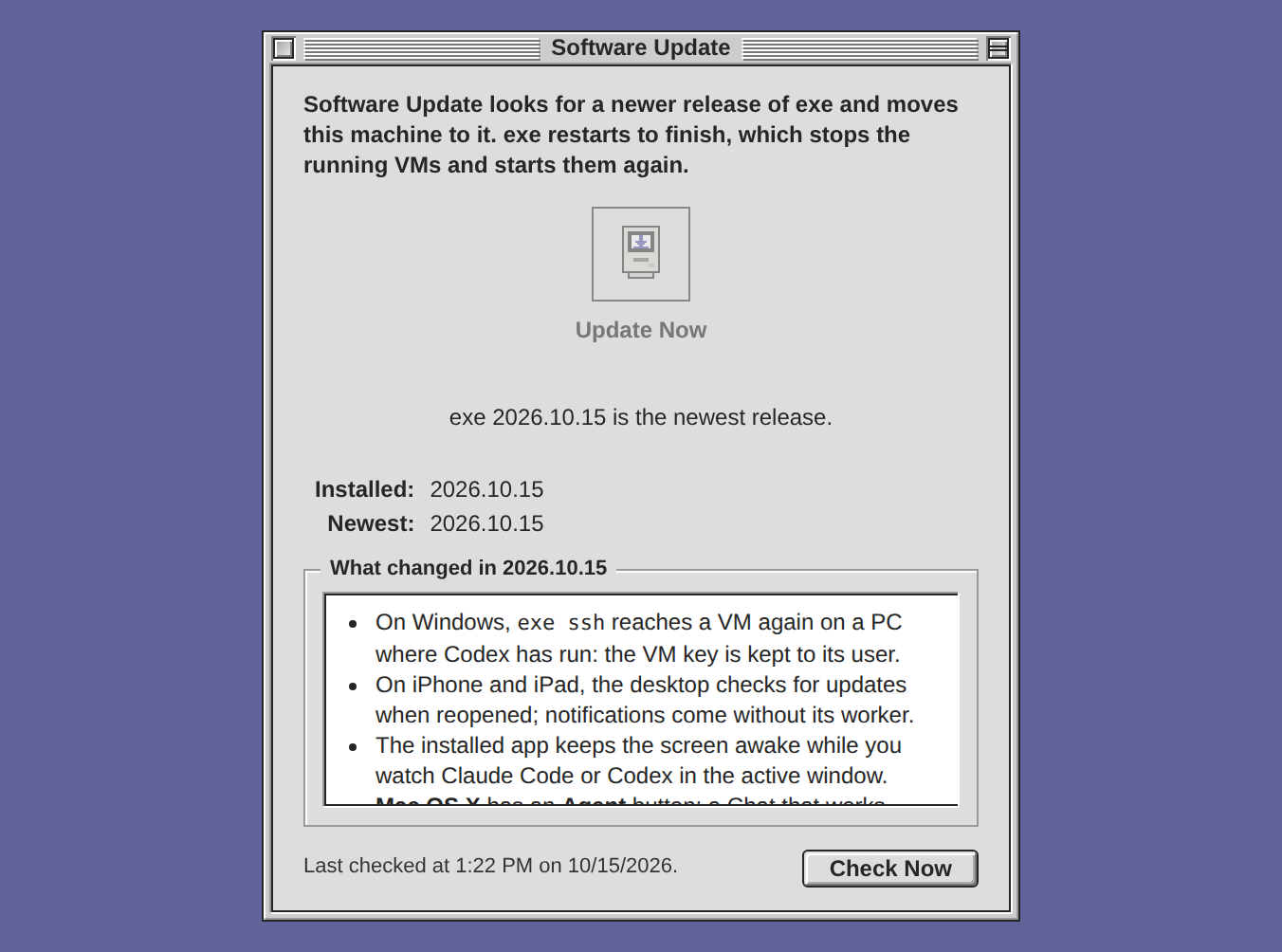
Software Update shows what the newest release changed. When you skipped a release, its notes were only on GitHub. Now What Changed keeps every release's notes, back to the first, with an address for each release, such as /docs/changelog#2026-10-12. The first release, 2026.10.10, carried no notes. Its entry lists 38 items, written from the manual as it was at that release.
Fixed
On Windows, exe ssh reaches a VM again on a PC where Codex has run. There it failed with "UNPROTECTED PRIVATE KEY FILE" in both Windows releases so far. Codex's sandbox could read the VM's key, and OpenSSH refuses such a key. Now the key has a permission list of its own: its user, SYSTEM and the Administrators. The next daemon start, or exe ssh itself, corrects an older key.
The green dot of a Claude Code session goes out when you stop a turn with Escape. Escape runs no Stop hook, so the dot stayed until the next prompt. Now exe asks the transcript whether the turn is over, and the row shows no mark.
Between joined desks, a Workspace file over 10 MB that you move to another folder stays on its node. Node Sync carries 10 MB at most, yet the nodes tried to send such a file every 30 seconds, and every try failed. On one node, 21 disk images and a video moved into folders cost about 2.2 TB of traffic in a day and a half.
Get it
An installed exe moves to this release with Software Update… in the Apple menu, or with exe update in a shell. exe restarts to finish, which stops the running VMs and starts them again. The alert names them first, and afterwards the window says how each one came back.
A new install on Linux, or on macOS 13 or later, on x86-64 or ARM64:
curl -fsSL https://exe.v2core.com/install.sh | sh
On Windows 11 on x86-64, in PowerShell:
irm https://exe.v2core.com/install.ps1 | iex
The release page has the files and their checksums. The Mac builds are signed with a Developer ID and notarized by Apple. The Windows build is not signed, as before.
What was tried before publishing
The release is built from commit c4f684f, 49 commits after 2026.10.12. The update that Software Update starts ran from 2026.10.12 on Linux (x86-64), on a Windows 11 PC and on a Mac with Apple silicon, each with a VM running. It took 34 seconds, 9 seconds and 4 seconds. Each guest was shut down, not cut off, and came back. exe update ran in a shell on Linux (ARM64). New installs were made on Linux (ARM64) and on a Mac (Apple silicon), each with its questions answered at a terminal.
Not tried for this release: pressing Update Now in a browser, a new install on Windows, and Windows 10. The Software Update window has not changed since 2026.10.12, where Update Now was tried. The Intel Mac build was only started under Rosetta, and its VMs have still not been tried on an Intel Mac.
Good to know
- Projects, Planet and Easel install from their own repositories: exe-projects, exe-planet and exe-easel. Projects shows Send to Claude Code and Send to Codex only with this release of exe or a later one.
- After the update, open the desktop once on each device that gets notifications, so it can refresh the subscription's address.
- The update brings the extra apps' new versions, Notes with its Stickies among them, except an app you edited or removed.