exe now updates itself from the desktop. Software Update, in the Apple menu, names the newest release, shows what changed in it and installs it. exe 2026.10.12 is the first release that has it, and the last one you need a shell to get.
This is the third release of exe, after 2026.10.10 and 2026.10.10.2. It also brings a second Mac that runs Mac OS X 10.4 Tiger, a Welcome window, four steps onto a hub and a manual you can search. Four fixes come with it.
Software Update
Until this release, a new exe meant a shell on the machine and exe update at a prompt. The desktop never looked for a newer release, so About This Computer named a version without saying that it was old. Yet an exe is used from a phone as much as from a shell.
Now Software Update… in the Apple menu does it from the desktop, on a phone as well as at a desk. A diamond beside the small Mac in the menu bar, and beside Software Update… in its menu, says that a newer release is waiting. You do not have to remember to look.
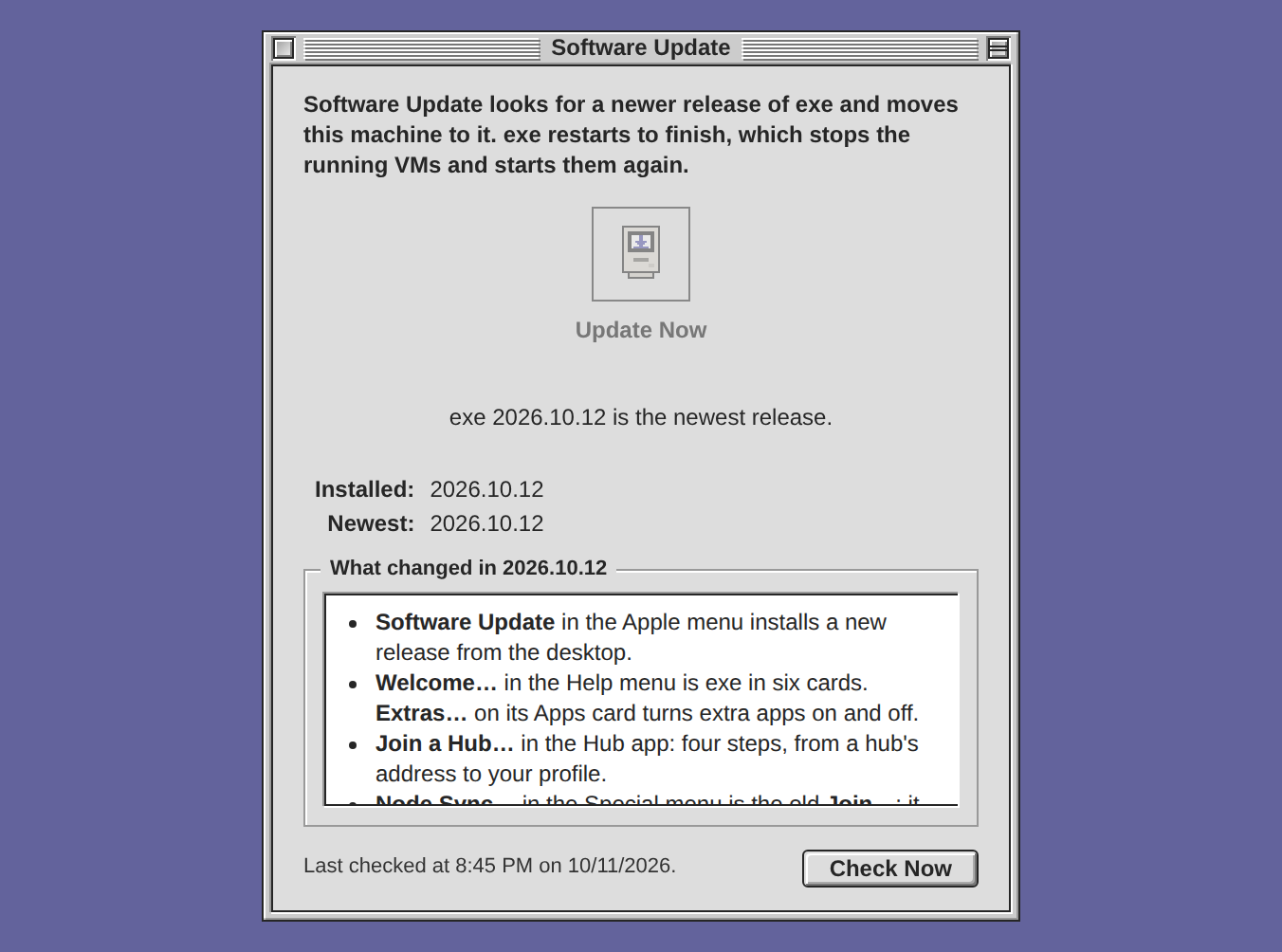
The window says which release is Installed and which is the Newest, and it lists what changed in the newest one. So you see what is new before you take it.
- Press Update Now. exe restarts to finish, and a restart stops the running VMs and starts them again. So an alert asks first, and it names those VMs.
- Press Update. exe downloads the release, checks it, replaces the binary and restarts.
The update runs in the daemon, not in the page. Close the window, or the browser, and the update goes on. A second Update Now from another device joins the same update, and the window says where it stands when you open it again.
When exe is back, the window names the version that runs now. For a quarter of an hour it also says how each VM that was running is doing, so you do not have to open each VM to see that it came back. On Linux, when a release changes the root-owned network helper, the window shows the two sudo lines that install the new helper.
The desktop looks for a release when it loads, and exe asks where the newest release is at most twice a day. Check Now asks at once. A look sends nothing about this machine. A release that is installed but not yet running, after a restart you put off in a shell, gets the button Restart Now. The Updating chapter has the rest, with exe update -check and exe update -y for a script or an agent.
One last time in a shell
2026.10.10 and 2026.10.10.2 have no Software Update window. So this one move still takes exe update in a shell on the machine.
On a Mac that runs one of those two releases, stop the VMs first. "Get it", below, says how and why.
Welcome… and Extras…
A new install used to open on an empty Virtual Machines window. The only word on what exe is for was a long manual under Help. Now a new install opens on Welcome…, which is also in the Help menu: exe in six cards.
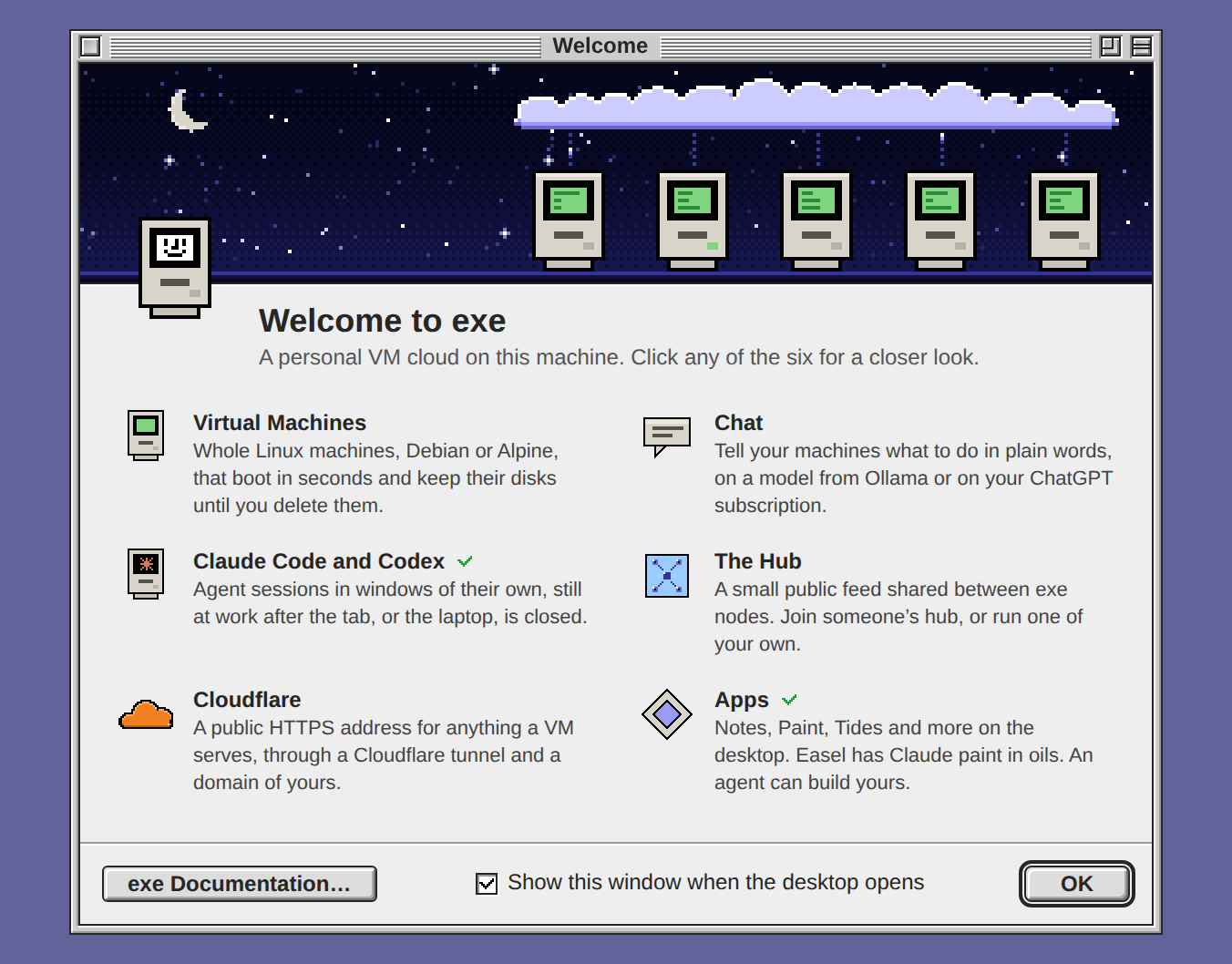
The cards are Virtual Machines, Chat, Claude Code and Codex, The Hub, Cloudflare and Apps. On a fresh install some of the six need a step first. So a click on a card shows how its feature stands on this machine, ready or what it still needs, and the button that goes there: New VM…, the pane of Configuration that sets Chat up, the Cloudflare Setup Wizard, Join a Hub… or Extras…. Read More… opens the manual on that feature's chapter.
The window opens with the desktop until you clear Show this window when the desktop opens. That box belongs to the machine, not to the browser. An exe that was installed before this release opens the window from Help → Welcome… only.
Extras…
Until now, the extra apps were a yes or a no at install time and nowhere after. Planet and Easel were two keys to write into config.json by hand. Extras…, on Welcome's Apps card, turns all three on and off from the desktop:
- The extra apps: Notes, Paint, Tides, Todo, Weather and World Clock.
- Planet, the site builder that runs beside exe.
- Easel, which runs Claude painters at an oil paint simulator.
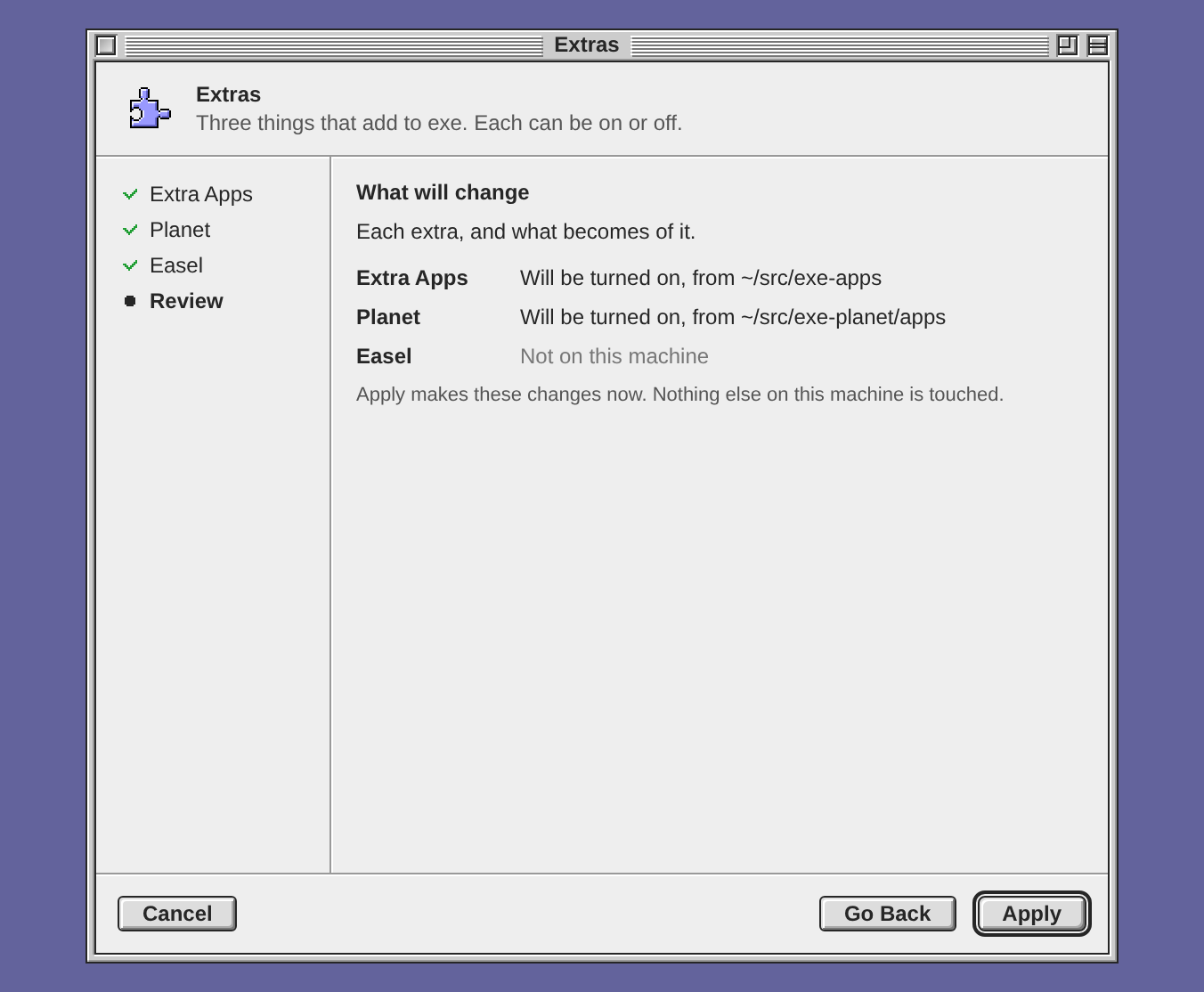
Extras has a step for each extra, with one check box, and a last step, Review. Nothing changes until you press Apply there.
- On a released exe, the extra apps come from the release that runs, and an update keeps them current. Off removes the ones that exe placed. An app you edited stays yours.
- Planet and Easel are programs of their own, and exe does not build them. On names a program's apps folder and its daemon in exe's configuration. Off takes them out again and leaves the daemon running.
- While Planet or Easel is not on the machine, its check box is grey. Its page gives a line to hand a coding agent, which then installs it.
Join a Hub…
The Hub app is a public feed shared between exe nodes. Its first run used to be one field for an address. Whoever got past it learned about the key, the gate and the name one refusal at a time. Join a Hub takes you from a hub's address to your profile in four steps. The Hub app opens on it while it has no hub. It is also at Special → Join a Hub… and on Welcome's Hub card.
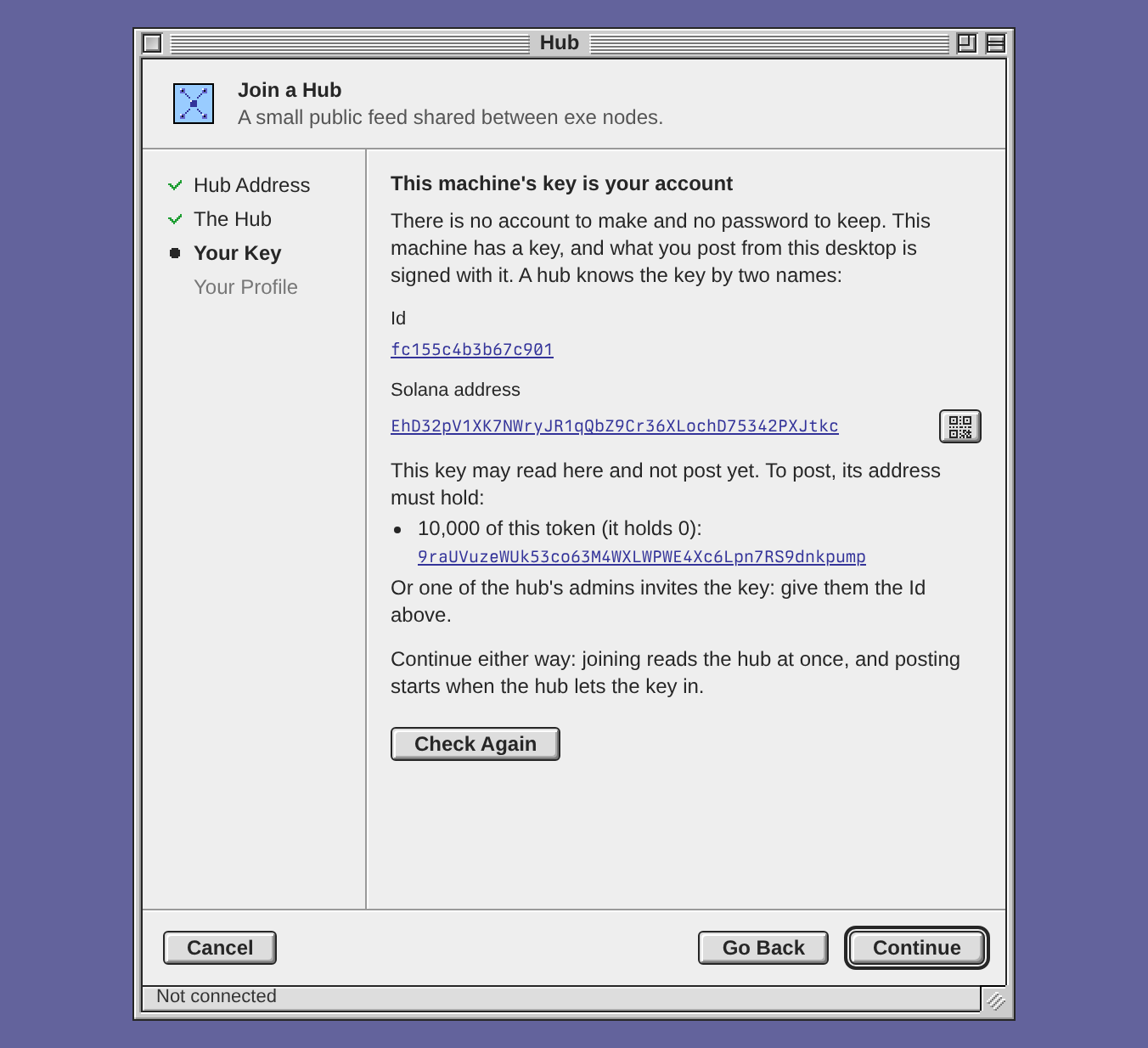
- Hub Address. The hub's name alone will do. Use hub.v2core.com fills in exe's own hub, where releases are announced.
- The Hub. Its id, how many users and posts it has, and whether posting is open or token-gated.
- Your Key. This machine's key is your account, so there is nothing to sign up for. A green check says that the key may post. On a token-gated hub, the page says what the hub asks for instead: an amount of its token, or an invitation from one of its admins. Check Again asks once more. Reading needs neither, so you can go on either way.
- Your Profile. The name, picture and bio that your posts carry. Join publishes them and opens the feed. An empty name joins as a reader.
Nothing is kept before Join, and Cancel leaves everything as it was. The Hub chapter has the rest.
Node Sync…, the old Join…
The Special menu now has Join a Hub…. So that you do not have to guess which join is which, the line that pairs this exe with another one is now Node Sync…, the title its window always had. Only the menu line changed. The desktop menu's action is still join, so a menu that you customized keeps working.
Joining pairs this exe with another one, such as your laptop's. The two then share what their apps save, their Workspace files up to 10 MB each, and their Newsfeed. VMs and the disks of the Mac OS 9 and Mac OS X apps stay on their own node. Joining desks together has the steps.
Mac OS X, beside Mac OS 9
The Mac OS X app, in the Special menu, is a second Mac in a window: an emulated Power Mac G4 that runs Mac OS X 10.4 Tiger, with a 100 GB disk of its own. Use it to run PowerPC Mac OS X software from a CD or DVD image. Or build for Tiger there: the install DVD carries Xcode 2, and Tiger has a Terminal and, if you choose it, X11. It needs no hypervisor, and it can run at the same time as the Mac OS 9 app.
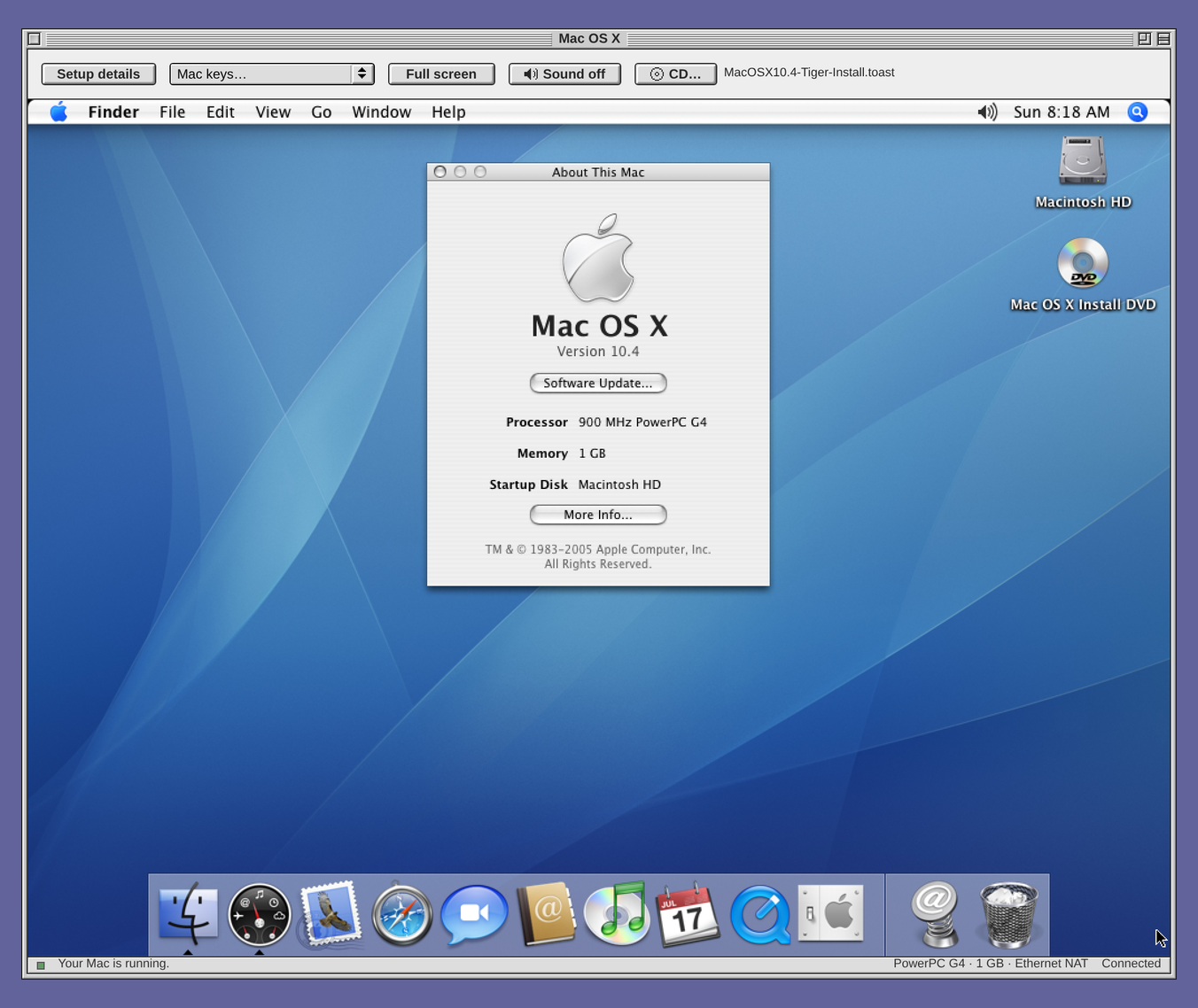
What you install stays on its disk, on this node. Close the window and the Mac runs on.
The first launch
Choose Special → Mac OS X. The app says what it will fetch and waits, and nothing is downloaded until you press Set up Mac. Setup then prepares the emulator, downloads Apple's Tiger install DVD from the Internet Archive, checks its checksum, creates the disk and starts the Mac from the DVD. Plan for it:
- The DVD is a 2.6 GiB download. The emulator is QEMU, which the Mac OS 9 app uses too. On Ubuntu 24.04, whichever of the two apps is set up first fetches it. On any other system, install
qemu-system-ppcandqemu-imgfirst (on a Mac,brew install qemu). - The disk takes only what the Mac has written: 3 to 5 GB after installation.
- The Mac has 1 GB of memory, taken from this machine while it runs.
The app's guide then takes you through Disk Utility and the Installer inside the Mac. Copying takes ten minutes to a quarter of an hour on a fast machine. A download that stopped part way goes on from where it stopped.
Working in it
The pointer is where your browser's pointer is, from the Installer's first screen on, and the wheel scrolls. Once Tiger is updated to 10.4.11, its driver leaves the edges of the tablet's range unused. The window sees where the arrow lands and allows for it, and the arrow is then within a pixel of yours. CD… takes images up to 9 GiB, so a dual-layer DVD fits.
The emulated keyboard and pointer are slow for a person and slower for an agent. So there is a second way in. Turn on Remote Login or Apple Remote Desktop in the Mac's System Preferences → Sharing. Then this machine, and no other, reaches a shell or the Mac's own screen sharing on the ports that Setup details shows. For screen sharing, also set VNC viewers may control screen with password under Access Privileges…. Tiger's SSH server is from 2004, and the Mac OS X chapter gives the options that a current ssh needs. Also turn Tiger's screen saver off: with no graphics card to draw it, it keeps a whole processor core busy.
Search in the Claude Code window
Archiving a session ends its process, and the conversation stays on disk. But the column lists only the latest ten conversations that no session holds. On a host with tmux, where the window has its column of sessions, Search, beside New in the Claude Code window, finds any conversation on this machine, archived ones too. So you can archive idle sessions and still find them.
Search opens a dialog over the window. It lists the window's sessions and, under a rule, every conversation that no session holds. Type words to narrow the list by title, first prompt or folder, and press Return or Open. A session moves the window to it, and any other conversation continues in a session of its own. In a narrow column, and on a phone, Search is a magnifier.
The Codex window has no Search yet. Claude Code deletes a conversation 30 days after its last write, unless cleanupPeriodDays says otherwise, so an archived conversation can be found for that long.
The Workspace as icons or as a list
A folder of disc images, checksums and readmes is easier to read a line at a time, with dates and sizes, than as a field of icons. Right-click the empty part of a Workspace window and choose View → as List. View → as Icons goes back.
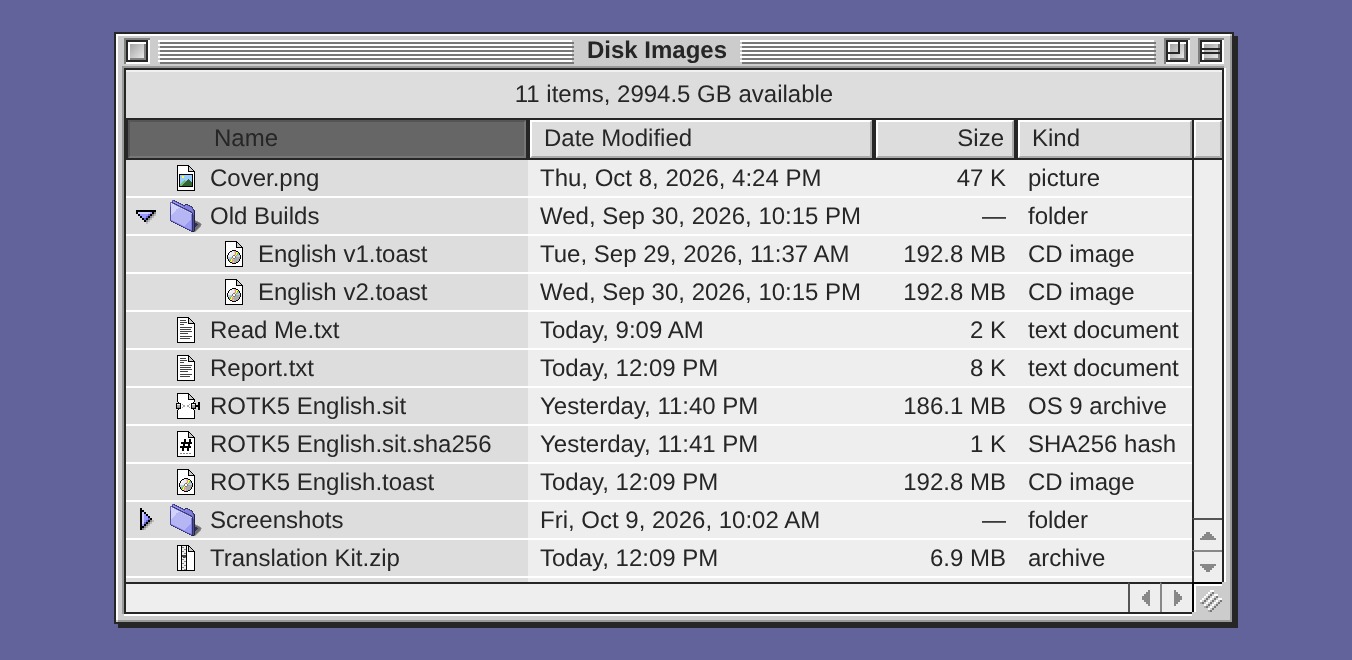
- Click Date Modified, Size or Kind to sort: newest first, largest first, kinds from A.
- Click the triangle before a folder to list its items under it. You see two folders' contents without two more windows. With a folder selected, the Right and Left arrow keys open and shut it.
- Each folder remembers its view, its sort and which folders are open. That holds on every desktop of this exe and on every node it syncs with.
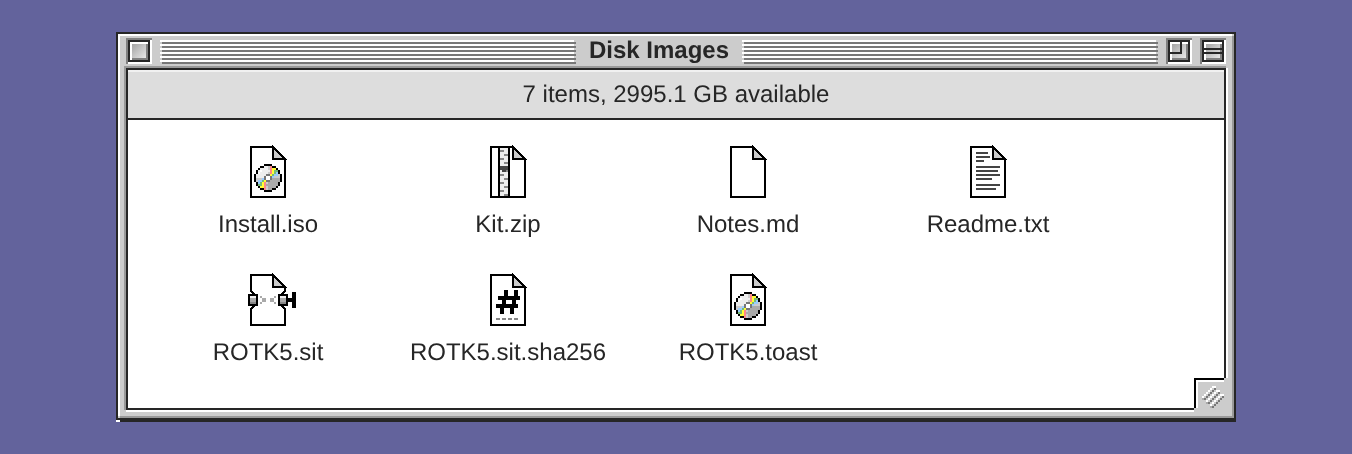
Files have icons of their own too. In 2026.10.10.2 a .toast, a .sit, a .sha256 and a .txt were the same blank page, so you could not tell the file to mount from its checksum or its readme. Now plain text files (.txt), CD images, classic Mac archives and SHA256 checksums each have an icon. A file of a kind the desktop does not know, a Markdown file among them, is still a blank page.
Save a Screenshot
When you want a picture of one window for a post or a bug report, a picture of the screen also holds the desktop and the windows around it. Now right-click a window's title bar, or press and hold it on a touch screen, and choose Save a Screenshot. A PNG of that window alone lands in the Workspace's Screenshots folder, named for the window and the time. An agent can read it there too.
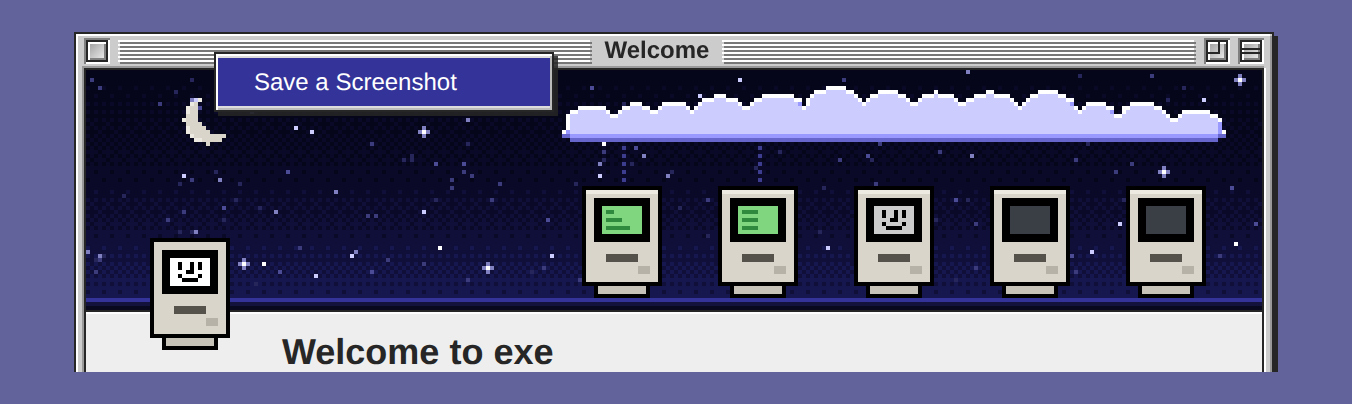
- The picture is the window with its frame and its shadow, on a clear ground. It is saved as it stands: scrolled where you left it, with the field you were typing in still ringed.
- On a sharp screen the picture is sharp: two pixels to the point on most screens, at Windows' 150 percent as well, and three on a phone. The file says so as a Mac's own screenshots do, so Preview opens it at the window's size.
- The desktop draws the window a second time, as a picture, so the browser does not ask for permission. A web page from the Workspace and a player from another site come out empty, since the desktop cannot see into them. Selected text shows unselected.
The manual
In 2026.10.10.2, Help → exe Documentation… was one page of some 1,500 lines. Now it opens on its contents and shows a chapter at a time. Contents, Previous and Next turn the pages.
To find a word, type in the field over the page, Search the manual.
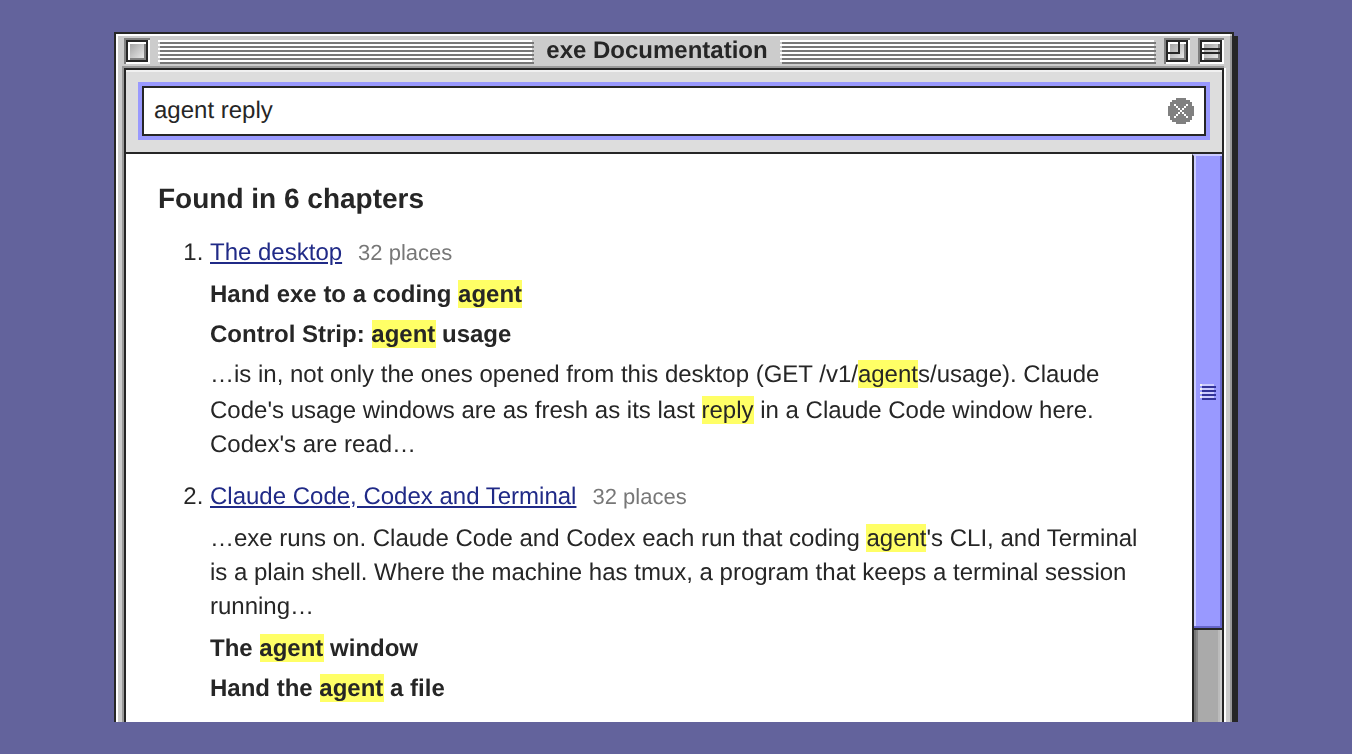
The contents narrow to the chapters that hold every word you typed. Each found chapter shows how many places hold the words and up to three of its lines, with the words in yellow. A line opens the chapter at that word. Press Escape, or click the small circled × at the field's right end, to end the search. A phone has no Escape key, so the × is there for it.
Every chapter now says what its feature is for before it says how the feature works: what it gives you and, where a coding agent can use it, what the agent gets. Its paragraphs are short. Each chapter was read against the source, and statements that had drifted are corrected. The chapters also say what they never said, such as how to join two nodes step by step and the HTTP calls behind each feature.
Fixed
On a Mac, a restart shuts the VMs down first
On a Mac the VMs live inside the exe process. Told to stop by a signal, 2026.10.10 and 2026.10.10.2 exited at once and cut the power of every running VM. Under the installer's launchd agent every restart is such a signal: an update, exe daemon restart and a logout. A VM could come back without its SSH server, or stay stopped. Now a Mac shuts its guests down first, as Linux and Windows already did, and the guests come back.
The installer on a Mac
The install line, typed in a Mac's Terminal, stopped at version?: unbound variable before it had written anything. In the UTF-8 locale that every Terminal window has, a Mac's sh read the first byte of an "…" as part of a variable's name. So every install typed at a Mac stopped there. Now the installer runs through to exe setup.
Space on an iPad with a keyboard
On an iPad with a keyboard, Space in a Terminal window could scroll the window instead of reaching the shell, while every letter arrived. So ls -l arrived as ls-l. Now, on an iPad or an iPhone, the terminal takes a plain Space itself. The Claude Code window runs the same terminal code, so it gets the fix too.
The wheel in a Codex window
Since version 0.160, Codex keeps a transcript that it scrolls itself. The daemon turned each notch of the wheel into an arrow key, and Codex's composer takes an arrow key as a step through past prompts. So the wheel put old prompts in the composer, and the conversation never moved. Now the wheel scrolls the transcript, three lines at a time. A session that is already running needs no restart of its own.
Get it
A new install, on Linux and on macOS 13 or later, x86-64 and ARM64 (Intel and Apple silicon):
curl -fsSL https://exe.v2core.com/install.sh | sh
On Windows 11 on x86-64, in PowerShell:
irm https://exe.v2core.com/install.ps1 | iex
An exe that is already installed:
exe update
On a Mac that runs 2026.10.10 or 2026.10.10.2, first press Stop for each running VM in Windows → Virtual Machines. The exe that restarts is still the old one, which cuts the power of a running VM. From this release on, a restart shuts the VMs down first. After this one move, Software Update… in the Apple menu takes over.
What was tried before publishing:
- A new install on Linux (ARM64) and on a Mac (Apple silicon), each with its questions answered at a terminal.
exe updatefrom 2026.10.10.2 on Linux (ARM64) and on a Mac (Apple silicon).- Software Update's window on a Linux PC (x86-64) and on a Windows PC, each with a VM running and the browser tab closed during the download. Each machine's log held one line that said the release was installed. Each guest was shut down, not cut off, and came back. That was the window's first run on Windows.
- A Mac restarted with a VM running. Its guest was shut down first.
What was not tried: a new install on Windows, since the PC under test was updated instead, a real sign-out on Windows, and Windows 10. The Intel Mac build was only started under Rosetta, where it said its version. Its VMs have still not been tried on an Intel Mac. The Windows build is not signed, as before.
The release, its files and their checksums are on GitHub, and the manual starts at Using exe.